Friday, January 20, 2012

Introducing SSIS Integration Toolkit for Microsoft Dynamics CRM

Today, I am happy to announce the availability of SSIS Integration Toolkit for Microsoft Dynamics CRM, an easy-to-use and cost-effective data integration library for Microsoft Dynamics CRM and Microsoft SQL Server Integration Services (SSIS).

First of all, this is a commercial offering, which we hope to bring a better solution to the market that can make your data integration job easier.

The toolkit is a set of SSIS adapters that allow you to read data from Microsoft Dynamics CRM server, or write data to it.

Among all the goodnesses, here are some highlighted features that you might be interested.
  • Native CRM 2011 SOAP interface support
  • Support for Microsoft Dynamics CRM 2011 and 4.0
  • Support for On-premise, IFD (federated) and Online deployments, including Office 365 (OSDP) environment
  • Support for CRM Entity or FetchXML query as data source in CRM source component
  • Support for Create/Update/Delete/Upsert actions in CRM destination component. When Upsert action is used, you have three matching options to choose to identify whether it is an existing record in CRM for update, or it's something not in the system that the component should create for you (insert). The three options include a combination of manually selected fields, CRM primary key, or CRM duplicate detection
  • One-click to toggle whether you want all or none of fields from a CRM entity in source component, which makes you more productive when selecting the only necessary fields to read data from CRM
  • Automatic mapping to the CRM fields in the destination component by matching the names from upstream components
  • You can set a picklist/optionset field value by either its integer value or its user friendly label
  • Native support of CRM many-to-many relationship to associate or disassociate CRM records in CRM destination component by using Create or Delete action
Here are some more details about the component along with some screen shots.

Overview
SSIS Integration Toolkit for Microsoft Dynamics CRM provides a cost-effective solution that helps integrate Microsoft Dynamics CRM with other data sources or applications.

SSIS Integration Toolkit takes advantage of the flexibility and power of Microsoft SQL Server Integration Services (SSIS) platform, which made it possible to integrate with virtually any application or data source that you may need to work with.

SSIS Integration Toolkit is extremely easy to use. It comes with the following three major components to help facilitate the integration development.
  • Microsoft Dynamics CRM Connection Manager
  • Microsoft Dynamics CRM Source Component
  • Microsoft Dynamics CRM Destination Component
The ultimate goal of the toolkit is to simplify the integration development work, so that you can spend more time focusing on resolving business issues. A data migration / integration development can be done as quickly as a few minutes, instead of weeks or months.

Microsoft Dynamics CRM Connection Manager

Microsoft Dynamics CRM Connection Manager allows you to setup a connection in SSIS so that it can used by Microsoft Dynamics CRM Source Component to retrieve data from Microsoft Dynamics CRM Server, or Microsoft Dynamics CRM Destination Component to write data to Microsoft Dynamics CRM server.

The connection manager offers the capability to connect to a Microsoft Dynamics CRM server which can be either version 2011 (including CRM Online) or 4.0. It supports both CRM 2011 SOAP endpoint and CRM SOAP 2007 Web Service interface.
Microsoft Dynamics CRM Connection Manager (TataSolutions SSIS Integration Toolkit)

CRM Connection Manager allows you to choose one of the following authentications based on how your CRM server is deployed or managed.
  • Active Directory (On-Premise)
  • Federated (On-Premise, Partner-hosted or Online Federation)
  • LiveId (CRM Online)
CRM Connection Manager - Authentication Type

Microsoft Dynamics CRM Source Component
Microsoft Dynamics CRM source component is a source component that you can use in SSIS data flow tasks, which allows you to read data from Microsoft Dynamics CRM Server.

Using Microsoft Dynamics CRM source component, you can pick a CRM entity to read data from, after a CRM connection has been chosen.
CRM Source Component - Entity.png

Microsoft Dynamics CRM source component also supports reading data from CRM server through using FetchXml queries.
CRM Source Component - FetchXml.png

When FetchXML option is used as the Source Type, CRM source component can intelligently identify all fields and corresponding metadata including the fields from linked entities.
CRM Source Component - FetchXml Columns

When Entity option is used as the Source Type, Microsoft Dynamics CRM Source Component allows you to select the CRM fields that you want to obtain data, which makes it easy when you have a large number of fields in CRM system, but you only need a small number of them to be used in the downstream pipeline components.
CRM Source Component - Choosing CRM Fields

Microsoft Dynamics CRM Destination Component

Microsoft Dynamics CRM destination component is a destination component that you can use in SSIS data flow tasks, so that you can write data to Microsoft Dynamics CRM Server.
Using Microsoft Dynamics CRM destination component, you can choose a CRM entity to write data to, and the action of such operation, which could be Create, Update, Delete or Upsert.
CRM Destination Component

CRM Destination Component can be smart enough to automatically map all available input columns from upstream components to corresponding CRM fields based on their names, and it also allows to change such mapping using a dropdown list.
CRM Destination Component - Column Mapping

CRM destination component supports CRM many-to-many relationship entities, in which case, you can use Create action to create associations, use Delete action to disassociate them.

CRM destination component supports upsert action, in which case, the component will first try to check if the provided CRM record exists in CRM system, the component will only create a new record if the matching record doesn't exist. If the component has identified any existing records based on the matching criteria provided, it will update the matching records.

CRM destination component's upsert action can use the following three matching criteria.
  1. Primary Key
  2. CRM Duplicate Detection
  3. Manually Specified Fields
CRM Destination Component - Upsert Action

For Create and Update action, CRM destination component allows you to choose "Enable CRM Duplication Detection" option.

When writing data to Microsoft Dynamics CRM, dealing with picklist / optionset imposes quite some challenges since CRM can only take integer numbers for them. Microsoft Dynamics CRM destination component has made this significantly easy, for any picklist / optionset fields (including statecode and statuscode fields), you can use either internal integer values, or their string values (user localized labels).

That's All
For more details about the offering, please proceed to my company's website at http://www.kingswaysoft.com.

Please give it a try, and let us know how it goes.

A free trial license can be requested after the installation using the accompanied License Manager program.

Hope you like this offering.

Sunday, January 01, 2012

Pass the Captcha Challenge of CRM Online Trial Request

This is a post that may not be technically interesting, but I thought I should share it in case you run into the same problem.

Yesterday, I was trying to sign up for a CRM online trial account, I was stunned to realize that I couldn't pass the eye test in the second step of the trial request.
I failed the eye exam miserably after many attempts including using the audio option.

The system I was using has an IE9 installed. 
I realized today this could possibly be a problem that happens to unique system environment, since it doesn't seem to be an often reported issue. The only report of this problem is a post on CRM forum, but nobody has ever responded since Nov 20, 2010. Based on the above speculation, I tried the same process on a computer with IE8 installed, and I was able to pass the eye test with my first try. 
I was relieved to realize that I was not visually blind or disabled, which I have been questioning myself ever since. PHEW!
I cannot explain the reason behind the problem, I have logged this as an issue on Microsoft connection site. If you get stuck with this issue, you may want to try a different system with an older version of IE installed. 
Hope this helps. 
Happy New Year, everyone! 

Friday, December 16, 2011

MSCRM 2011: Two Errors When Using CRM Developer Toolkit to Deploy Workflow Library

While I was trying to develop a custom workflow library using CRM developer toolkit, I run into the following two errors (actually one at a time, but I am trying to keep the long story short).
Error registering plugins and/or workflows. A validation error occurred. The value of 'isolationmode' on record of type 'pluginassembly' is outside the valid range.
Error registering plugins and/or workflows. Description name must be specified
Parameter name: description
The solution is rather simple. What you need to do is to open RegisterFile.crmregister file (which is essentially an XML file) under CrmPackage project, and make some changes to the file in order to provide enough information for the deployment.
  1. Locate the Solution line of the workflow library in the XML file, add an XML attribute called IsolationMode, and give it a value of "None", so the XML attribute will be IsolationMode="None". 
  2. Located WorkflowType line, and add an XML attribute called Description, and give it a value which is meaningful. 
The following is the screen shot of the file before the change.

After the fixes, the file should look like this.
After you have made the above changes, you should be able to deploy your CRM workflow library in Visual Studio without problem.
Hope this helps if you ever run into the same issue.

Friday, December 02, 2011

MSCRM 2011: Filtered Lookup for "Add Existing..." Button of a CRM N:N View

I have previously documented a way to add lookup filtering capability to MSCRM4 "Add Existing..." button in a CRM N:N view. There was a question in the blog post today about whether this is possible in CRM 2011. So here is this blog post that will walk you through the implementation process.

Prerequisites

To go through the customizations in this blog post, you need to understand how CRM ribbon customization works, and also you need to know how to work with CRM Web Resources and solution export/import functionalities. It should also be noted that this blog post uses CRM Developer Toolkit. In case you are not familiar with the toolkit, you can have a look at my another blog post that illustrates some typical development scenarios which you might find useful. This blog post might be able to demonstrate you how the toolkit can help improve your productivity when developing CRM scripts.

Business Scenario

Let's say we have a custom entity called Project, which has a many-to-many relationship to CRM account entity. In Project entity form, I added a sub-grid which points to account entity, as shown below.


In the above screen, we have a Add Existing Button when the sub-grid is selected. When the button is clicked, we will be prompted the lookup entity's default Lookup View, as shown below.


What we are trying to achieve is to add some filtering capability to the "Add Existing ..." button so CRM only shows the account records that we are interested.

Let's get started.


Steps

Step 1: Create CRM JavaScript Web Resources

  1. In Visual Studio 2010, create a CRM project. (Please refer to the blog post that I just mentioned for detailed instructions about how to do this)
  2. In CrmPackage project, right-click WebResouces –> Script (JScript), and choose "Add" –> "New Item" to create a new JavaScript file. Let's call the file Project.js.


  3. Add the following script to the JS file (I borrowed the fetchXml and layoutXml combination from SDK document).
    function addExistingFromSubGridCustom(params) {
    
        var relName = params.gridControl.getParameter("relName"),
            roleOrd = params.gridControl.getParameter("roleOrd"),
            viewId = "{00000000-0000-0000-0000-000000000001}"; // a dummy view ID
        
        var customView = {
            fetchXml: params.fetchXml,
            id: viewId, 
            layoutXml: params.layoutXml,
            name: "Filtered Lookup View",
            recordType: params.gridTypeCode,
            Type: 0
        };
    
        var lookupItems = LookupObjects(null, "multi", params.gridTypeCode, 0, null, "", null, null, null, null, null, null, viewId, [customView]);
        if (lookupItems && lookupItems.items.length > 0) {
            AssociateObjects(crmFormSubmit.crmFormSubmitObjectType.value, crmFormSubmit.crmFormSubmitId.value, params.gridTypeCode, lookupItems, IsNull(roleOrd) || roleOrd == 2, "", relName);
        }
    }
    
    function addExistingFromSubGridAccount(gridTypeCode, gridControl) {
        addExistingFromSubGridCustom({
            gridTypeCode: gridTypeCode,
            gridControl: gridControl,
            fetchXml: "<fetch version='1.0' " +
                           "output-format='xml-platform' " +
                           "mapping='logical'>" +
                       "<entity name='account'>" +
                       "<attribute name='name' />" +
                       "<attribute name='address1_city' />" +
                       "<order attribute='name' " +
                               "descending='false' />" +
                       "<filter type='and'>" +
                           "<condition attribute='ownerid' " +
                                       "operator='eq-userid' />" +
                           "<condition attribute='statecode' " +
                                       "operator='eq' " +
                                       "value='0' />" +
                       "</filter>" +
                       "<attribute name='primarycontactid' />" +
                       "<attribute name='telephone1' />" +
                       "<attribute name='accountid' />" +
                       "<link-entity alias='accountprimarycontactidcontactcontactid' " +
                                       "name='contact' " +
                                       "from='contactid' " +
                                       "to='primarycontactid' " +
                                       "link-type='outer' " +
                                       "visible='false'>" +
                           "<attribute name='emailaddress1' />" +
                       "</link-entity>" +
                       "</entity>" +
                   "</fetch>",
            layoutXml: "<grid name='resultset' " +
                                 "object='1' " +
                                 "jump='name' " +
                                 "select='1' " +
                                 "icon='1' " +
                                 "preview='1'>" +
                             "<row name='result' " +
                                  "id='accountid'>" +
                               "<cell name='name' " +
                                     "width='300' />" +
                               "<cell name='telephone1' " +
                                     "width='100' />" +
                               "<cell name='address1_city' " +
                                     "width='100' />" +
                               "<cell name='primarycontactid' " +
                                     "width='150' />" +
                               "<cell name='accountprimarycontactidcontactcontactid.emailaddress1' " +
                                     "width='150' " +
                                     "disableSorting='1' />" +
                             "</row>" +
                           "</grid>"
    
        });
    }
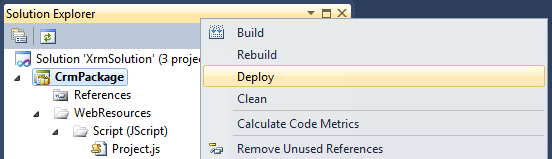
  4. After the script has been saved, you can right click CrmPackage project in Visual Studio Solution Explorer window, and choose "Deploy" to deploy the script to CRM Server. In our case, we will have a Web Resource in CRM called new_Project.

Step 2: Customize CRM Ribbon to Hook up the JS Function

  1. In CRM, create a new solution, and add account entity (the entity in the sub-grid) to the solution.
  2. Export the solution to a .zip file, and extract the file somewhere in your local file system.
  3. Open the customizations.xml from the extracted file, and locate RibbonDiffXml section in the file, under the account entity.


          <RibbonDiffXml>
            <CustomActions />
            <Templates>
              <RibbonTemplates Id="Mscrm.Templates"></RibbonTemplates>
            </Templates>
            <CommandDefinitions />
            <RuleDefinitions>
              <TabDisplayRules />
              <DisplayRules />
              <EnableRules />
            </RuleDefinitions>
            <LocLabels />
          </RibbonDiffXml>
  4. What we need to change is the CommandDefinitions part, which we can get the template code from applicationribbon.xml file (or <entityname>ribbon.xml if it's a system entity) in CRM SDK's resources\exportedribbonxml folder. 
  5. In applicationribbon.xml file (or <entityname>ribbon.xml), locate <CommandDefinition Id="Mscrm.AddExistingRecordFromSubGridAssociated"> line (You can search by addExistingFromSubGridAssociated to get there).
  6. Copy the xml content under <CommandDefinition Id="Mscrm.AddExistingRecordFromSubGridAssociated"> (including itself and its closing tag as well) to the customizations.xml file, so it should look like this.
  7. Modify the JavaScriptFunction part to point to the custom JS function that we previously developed, so it should be something like this:


    The following is the final customization xml.
      <CommandDefinition Id="Mscrm.AddExistingRecordFromSubGridAssociated">
        <EnableRules>
          <EnableRule Id="Mscrm.AppendPrimary" />
          <EnableRule Id="Mscrm.AppendToPrimary" />
          <EnableRule Id="Mscrm.EntityFormIsEnabled" />
        </EnableRules>
        <DisplayRules>
          <DisplayRule Id="Mscrm.AddExisting" />
          <DisplayRule Id="Mscrm.ShowForManyToManyGrids" />
          <DisplayRule Id="Mscrm.AppendPrimary" />
          <DisplayRule Id="Mscrm.AppendToPrimary" />
          <DisplayRule Id="Mscrm.AppendSelected" />
          <DisplayRule Id="Mscrm.AppendToSelected" />
          <DisplayRule Id="Mscrm.CanWriteSelected" />
        </DisplayRules>
        <Actions>
          <JavaScriptFunction FunctionName="addExistingFromSubGridAccount" Library="$webresource:new_Project">
            <CrmParameter Value="SelectedEntityTypeCode" />
            <CrmParameter Value="SelectedControl" />
          </JavaScriptFunction>
        </Actions>
      </CommandDefinition>
    Note that your JS webresource name could be in different format. You can find out that by openning the web resource in CRM, which tells you the path to the web resource file.

  8. Save the file, and zip it back to the original solution export file.
  9. Import the solution file, and publish changes. If everything goes OK, you will see a filtered lookup like the following.

Final Notes

  1. This is an unsupported customization, since we are using undocumented CRM built-in JS functions.
  2. addExistingFromSubGridCustom function is a re-usable function which is what you really need. addExistingFromSubGridAccount function is the actual one that's going to be called in your ribbon command button's customization.
  3. The filter that I have implemented didn't use any context information (such a field value) on the CRM form, you can easily add this in the function when constructing the fetchXml string, if desired.
  4. The above change will apply to all account subgrid regardless of the hosting entity. It should be possible to handle it differently by getting some context information from the form, or probably pass some extra information to the function.
  5. The code didn't have much comments, but hopefully the sample has provided enough information for you to start with.
By the way, an off-topic note, this blog has just reached 100K page views today. It took almost two years to reach 50K pageviews last time, but it only takes a few months to reach another one, although I don't currently produce as many posts as I did in the beginning of my blogging adventure. Good to see the growth of the CRM community.

Hope this helps.

Thursday, November 03, 2011

Add Visual Ribbon Editor to Your CRM Toolbox

Working with CRM ribbon customization could be a very challenging job due to its complexity and the vast options that the CRM platform offers.

Tools BagErik Pool has recently released a tool called Visual Ribbon Editor, which I believe you can now add to your toolbox to make yourself a proud and productive CRM developer. 

Enough though I am not practically working on CRM customizations on a day-to-day basis at this moment, I can tell the tool is sophisticated enough to help you conduct your ribbon customization work in a productive way.

Using the tool, you don't have to do all the wild guess about what you can do with your CRM ribbons. You can now instantly add, remove ribbon button and button groups, apply Display and Enabled rules based on your business requirements through its visual interface.

The following is a screen shot that I have copied from Erik's blog post.
CRM Visual Ribbon Editor
Check out the tool, I believe this is the only CRM ribbon customization tool you will ever need.

Hope this helps.

Wednesday, November 02, 2011

White Paper - CRM Solution Deployment Released

Microsoft Dynamics CRM team has just released another white paper yesterday which covers some typical issues that you may encounter when developing, deploying CRM solutions, the whitepaper has also described some best practices that you can leverage when developing your solution components and promoting the changes across environments.

The following is a brief list of the contents of the whitepaper.

Preface
Introduction
Maintaining Test Environments
    Testing Microsoft Dynamics CRM 2011 On-Premises Deployments 
    Testing Microsoft Dynamics CRM Online Deployments
        Managing Configuration 
        Managing Data 
        Using Microsoft Dynamics CRM Online Trials
Managing Solution Component Dependencies
    Addressing Execution Identity Issues 
        Plug-ins
        Workflows
    Addressing Workflow Reference Issues 
    Automating the Creation of Users, Teams, and Business Units 
        Creating Business Units and Teams
        Creating Users
    Automating the Creation of Queues 
    Preparing Configuration Data
    Preparing Solution Reference Data 
Upgrading Solutions
Managing Solution Conflicts 
Deploying Solutions
Conclusion

The whitepaper can be downloaded from the Microsoft Download Center at the following link.
The whitepaper has a lot of valuable information about CRM 2011 solution framework, it's an important guideline document that you should check out.

It should be noted that CRM team has given the whitepaper an interesting name which is extremely long, but what has been discussed in the whitepaper is really about solution deployment.

Hope this help.