Showing posts with label MSCRM Customization Export. Show all posts

Thursday, November 25, 2010

Non-sense CRM4 Customization Import Error

Here is another CRM4 customization import error that I recently ran into, but it's a non-sense and probably a nasty one.

What the problem is, I have been trying to update my development VPC image from rollup 9 to a more recent one. As soon as my VPC image is updated to any rollup after 10, I start to receive an error message when I try to import CRM customizations. The weird thing is, this error even happens in the same environment. By the same environment, I mean that it happens even I was exporting the CRM customizations and then re-importing the same customization file on the same server box.

Here is what the error message looks like:
Failure: incident_activity_parties: Cascade link type 'NoCascade' is invalid for Delete.
Nonsense Customization Import Error
Since I had a little bit cycle today and I was aware that Microsoft has just released Rollup 14 last week, I thought it would be a good chance to give it another try. I usually had pretty good confidence at Microsoft team's fast turnaround in terms of bug fixing. Unfortunately it's not the case this time, the same error persisted after I updated to Rollup 14.

I was naive enough, I thought that I could become a hero if I could find a solution for this issue. So I turned on CRM server trace log, and re-ran the import process. After about two tries (first try failed for a different reason), I got 115 log files in my CRM trace folder (they consumed 1.1GB hard drive space on my poor VPC image). However those log files didn't give me much helpful information, except another error message that was thrown before the previously mentioned message, which stated that "Failed to import entity relationship incident_activity_parties", which I don't have any clue why it has happened either.

After about 30 minutes of experimenting and Google search, I gave up on this. A few folks in the community have been suggesting to muck around the customization xml file, which I am not so encouraged to go this path, as I believe that could possibly cause more problems in the long run that it actually solves.

[Update - Feb 28, 2011] I finally figured out what the problem is, I had Data Migration Manager installed on my server. As soon as I uninstalled DMM and the problem went away. Still a mystery for me, but I can now finally go with more recent rollups.

Sunday, August 15, 2010

Yet Another Error when Exporting/Publishing CRM Customizations

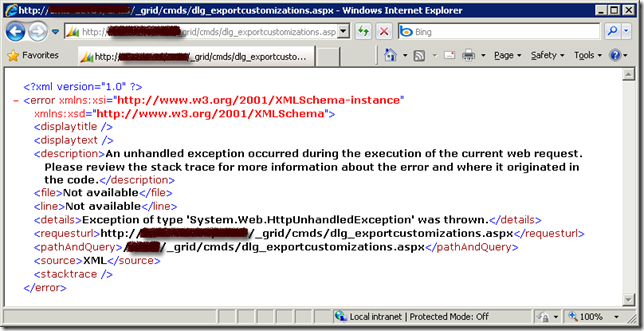
Not long after I had a CRM customization export exception that I documented previously, I ran into another CRM customization related error. It happened to me when I try to export/publish one of my CRM entities, what I got is a screen shot like this.
Customization Export Error

The key message here is , "An unhandled exception occurred during the execution of the current web request. Please review the stack trace for more information about the error and where it originated in the code. "

This is a very generic message that doesn't give me much information about the exception. So I turn on CRM trace log, and what I got from trace log was not much helpful either. It simply says, "System.Reflection.TargetInvocationException: Exception has been thrown by the target of an invocation. ---> System.NullReferenceException: Object reference not set to an instance of an object.".

Microsoft knowledge base article 947096 has given a solution for this error. But I was not able to find any offending attributes by following the instruction. So I had to look for a solution for the error, here is what I have come up after digging information from Google and the CRM forum (The error occurred to me about a month ago, but I just got time to document the solution, I can not find the particular thread any more at the time I am writing this blog post, which is the primary reason that I want to write the blog post since the helpful information is not easy to find, and it was buried in a very long thread).

  1. The first thing you need to do is to identify the offending entity if you don't know yet. You may try to utilize the Binary Search algorithm that you have learned in school (or somewhere else) to help you find the entity. The way to work is, you start by publishing the first half set of all CRM entities, if you run into error, then the offending entity must belong to the first half set. If you don't run into any error, then the offending must belong to the second half set. Keep doing this until you find the one. Suppose that we have identified that new_offendingentity is the entity that caused us grief.
  2. Launch SQL Management Studio and connect to CRM database. (Make sure that you make a full backup of your CRM database before proceeding to next step)
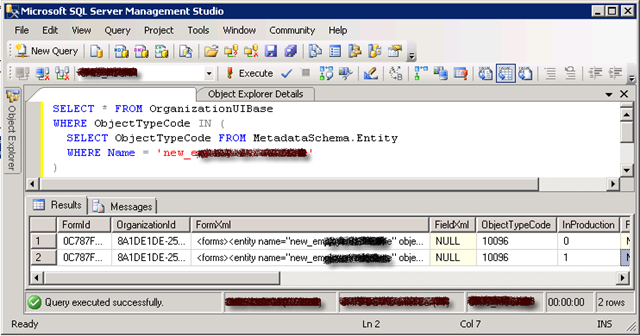
  3. Identify the culprit CRM fields. In order to identify the columns that ceased the problem, you can execute the following SQL script.
    SELECT * FROM OrganizationUIBase
    WHERE ObjectTypeCode IN (
        SELECT ObjectTypeCode FROM MetadataSchema.Entity
        WHERE Name='new_offendingentityname'
    )
    SQL Query to Find Offending FormXML
    After running the SQL script, you should get two records as shown below. One record has InProduction = 0, another one has InProduction = 1. They basically represent the customization XML that you are drafting, and the customization XML that is already published.
    The column that should interest you is FormXml (the one has InProduction = 1). You may copy the content of FormXml column to an XML editing tool, such as Visual Studio (you can use Visual Studio formatting tool to make it more readable by pressing Ctrl+K following Ctrl+D), and inspect the XML string. At the same time, you can open your entity's customization page, and navigate to its Attributes page so that you can see all fields that belong to the offending entity. If you look carefully enough, you should be able to find out, one (or more, but most likely one) of CRM fields in the XML is missing from the actual entity customization, which is the cause of the problem. If you cannot determine the offending CRM fields, you should not proceed to next step, in which case you might want to inspect the record that has InProduction = 0, this is where the solution documented in the knowledge base article can come to rescue you.

    After you have determined the missing field, you are now ready to take action to correct the issue.
  4. Execute the following SQL script to delete the offending FormXml record that has been published.
    DELETE FROM OrganizationUIBase
    WHERE ObjectTypeCode IN (
        SELECT ObjectTypeCode FROM MetadataSchema.Entity
        WHERE Name='new_offendingentityname'
    )
    AND InProduction = 1
    SQL Query to Fix Offending FormXML
  5. After you have successfully deleted the offending FormXml record, you should now be able to export and publish the customizations of the involved entity.
PLEASE BE ADVISED, any direct change made to CRM database could cause potential problem to the application, make sure to have a full database backup before doing so.

The cause of the problem is that there is orphan or missing field in your published FormXML which was not documented in the mentioned Microsoft knowledge base article.

Hope this helps if you ever run into the same error.

Wednesday, July 07, 2010

CRM Export Customization Error and Workflow "Query Builder Error - No Entity"

I was recently promoting some significant customization changes from one environment (DEV) to another (UAT). Since the changes involved some physical name changes of a few CRM entities and attributes, so I have to delete all those involved entities and import the customizations that I have exported from DEV. The import on UAT was successful, and the application simply runs fine until I was trying to export all customizations on UAT, which gives me the following stunning error message - "The entity with ObjectTypeCode = 100xx was not found in the MetadataCache":
<?xml version="1.0" ?>
<error xmlns:xsi="http://www.w3.org/2001/XMLSchema-instance" xmlns:xsd="http://www.w3.org/2001/XMLSchema">
<code>0x80041102</code>
<displaytitle>Query Builder Error</displaytitle>
<displaytext>No Entity</displaytext>
<description>The entity with ObjectTypeCode = 10088 was not found in the MetadataCache.</description>
<file>Not available</file>
<line>Not available</line>
<details>The entity with ObjectTypeCode = 10088 was not found in the MetadataCache.</details>
<requesturl>http://MyCrmServer/CrmOrgName/_grid/cmds/dlg_exportcustomizations.aspx</requesturl>
<pathAndQuery>/CMIS-UAT/_grid/cmds/dlg_exportcustomizations.aspx</pathAndQuery>
<source>XML</source>
<stacktrace />
</error>
ObjetTypeCode Not Found
The story doesn't just end here. When I tried to click "Workflows" link in my CRM's Settings area, I got the following beautiful "Query Builder Error – No Entity" CRM screen.
Query Builder Error
After a little search on Internet, I found that CRM MVP David Yack has documented this error, which pointed me to the right direction. Based on his information, I was able to fix the problem by using the following procedures.
  1. Launch SQL Management Studio and connect to CRM database.
  2. Determine which workflow is causing the problem by using the following SQL script.
    SELECT * FROM WorkflowBase 
    WHERE PrimaryEntity='10088' -- The entity code that caused the problem
    By looking at the returned record and its Name column, which is the workflow's name, you should know which workflow is causing the problem, at the same time you should be able to figure out which entity is actually causing the problem. For instance, you have figured that 'new_myentity' is the culprit.

  3. Determine the offending entity's ObjectTypeCode by issuing the following SQL script.
    SELECT ObjectTypeCode FROM MetadataSchema.Entity
    WHERE Name='new_myentity' -- The entity's name that caused the problem
    You should now get an integer code, so that we can use next. For instance, we got a number of 10095. 

  4. Run the following SQL script to correct the issue. 
    UPDATE WorkflowBase
    SET PrimaryEntity='10095' -- The correct entity code (The code that you got from step 3)
    WHERE PrimaryEntity='10088' -- The entity code that caused the problem
    You should expect a few records to be updated depending on how many workflows were involved. 
After you have done the above procedures, you should be able to do full customization export, and also you should be able to manage your workflows again.

BE ADVISED, any direct change made to CRM database could cause potential problem to the application, make sure to have a full database backup before doing so.

The cause of the problem might be that as soon as I finished deleting old CRM entities on the UAT environment, I immediately imported the customizations. CRM server might not have actually cleaned up the metadata cache at the point of the import, which ends up the orphan workflow records in CRM database.

Hope this helps if you ever run into the same error.