Showing posts with label MSCRM Customization. Show all posts

Friday, May 04, 2012

One and only CRM Ribbon editor that you will ever need

A while back, I blogged about a ribbon editor in the community. Recently another CRM community guru Scott Durow published his toolkit for CRM ribbon customization, which is called Ribbon Workbench.

Scott informed me about the tool soon after he made it available. I promised him that I would write a blog post about his tool, but I never got a chance to write about it. So here is a short introduction of the tool (Scott, I apologize for this overdue blog post).

A few benefits of the tool as far as my experience goes.
  • The tool was developed using Silverlight Web Resources, so it runs within CRM providing you an integrated experience with the application
  • The tool is more stable and more robust, I had never run into any crashes so far
  • The tool has probably the most complete features in terms of ribbon customization. Some important feature that are not commonly seen in other tool include the support of scaling, flyout menu, and many others (For a complete list of all the feature, please check the tool's download page). 
The following is a screenshot of the tool in CRM. 


Note that the tool is a freeware, it is available for download at Scott's company website

I noticed that Tanguy has published a blog post about the tool today, I am just trying to second his sentiment. 

Hope this help. 

Friday, December 02, 2011

MSCRM 2011: Filtered Lookup for "Add Existing..." Button of a CRM N:N View

I have previously documented a way to add lookup filtering capability to MSCRM4 "Add Existing..." button in a CRM N:N view. There was a question in the blog post today about whether this is possible in CRM 2011. So here is this blog post that will walk you through the implementation process.

Prerequisites

To go through the customizations in this blog post, you need to understand how CRM ribbon customization works, and also you need to know how to work with CRM Web Resources and solution export/import functionalities. It should also be noted that this blog post uses CRM Developer Toolkit. In case you are not familiar with the toolkit, you can have a look at my another blog post that illustrates some typical development scenarios which you might find useful. This blog post might be able to demonstrate you how the toolkit can help improve your productivity when developing CRM scripts.

Business Scenario

Let's say we have a custom entity called Project, which has a many-to-many relationship to CRM account entity. In Project entity form, I added a sub-grid which points to account entity, as shown below.


In the above screen, we have a Add Existing Button when the sub-grid is selected. When the button is clicked, we will be prompted the lookup entity's default Lookup View, as shown below.


What we are trying to achieve is to add some filtering capability to the "Add Existing ..." button so CRM only shows the account records that we are interested.

Let's get started.


Steps

Step 1: Create CRM JavaScript Web Resources

  1. In Visual Studio 2010, create a CRM project. (Please refer to the blog post that I just mentioned for detailed instructions about how to do this)
  2. In CrmPackage project, right-click WebResouces –> Script (JScript), and choose "Add" –> "New Item" to create a new JavaScript file. Let's call the file Project.js.


  3. Add the following script to the JS file (I borrowed the fetchXml and layoutXml combination from SDK document).
    function addExistingFromSubGridCustom(params) {
    
        var relName = params.gridControl.getParameter("relName"),
            roleOrd = params.gridControl.getParameter("roleOrd"),
            viewId = "{00000000-0000-0000-0000-000000000001}"; // a dummy view ID
        
        var customView = {
            fetchXml: params.fetchXml,
            id: viewId, 
            layoutXml: params.layoutXml,
            name: "Filtered Lookup View",
            recordType: params.gridTypeCode,
            Type: 0
        };
    
        var lookupItems = LookupObjects(null, "multi", params.gridTypeCode, 0, null, "", null, null, null, null, null, null, viewId, [customView]);
        if (lookupItems && lookupItems.items.length > 0) {
            AssociateObjects(crmFormSubmit.crmFormSubmitObjectType.value, crmFormSubmit.crmFormSubmitId.value, params.gridTypeCode, lookupItems, IsNull(roleOrd) || roleOrd == 2, "", relName);
        }
    }
    
    function addExistingFromSubGridAccount(gridTypeCode, gridControl) {
        addExistingFromSubGridCustom({
            gridTypeCode: gridTypeCode,
            gridControl: gridControl,
            fetchXml: "<fetch version='1.0' " +
                           "output-format='xml-platform' " +
                           "mapping='logical'>" +
                       "<entity name='account'>" +
                       "<attribute name='name' />" +
                       "<attribute name='address1_city' />" +
                       "<order attribute='name' " +
                               "descending='false' />" +
                       "<filter type='and'>" +
                           "<condition attribute='ownerid' " +
                                       "operator='eq-userid' />" +
                           "<condition attribute='statecode' " +
                                       "operator='eq' " +
                                       "value='0' />" +
                       "</filter>" +
                       "<attribute name='primarycontactid' />" +
                       "<attribute name='telephone1' />" +
                       "<attribute name='accountid' />" +
                       "<link-entity alias='accountprimarycontactidcontactcontactid' " +
                                       "name='contact' " +
                                       "from='contactid' " +
                                       "to='primarycontactid' " +
                                       "link-type='outer' " +
                                       "visible='false'>" +
                           "<attribute name='emailaddress1' />" +
                       "</link-entity>" +
                       "</entity>" +
                   "</fetch>",
            layoutXml: "<grid name='resultset' " +
                                 "object='1' " +
                                 "jump='name' " +
                                 "select='1' " +
                                 "icon='1' " +
                                 "preview='1'>" +
                             "<row name='result' " +
                                  "id='accountid'>" +
                               "<cell name='name' " +
                                     "width='300' />" +
                               "<cell name='telephone1' " +
                                     "width='100' />" +
                               "<cell name='address1_city' " +
                                     "width='100' />" +
                               "<cell name='primarycontactid' " +
                                     "width='150' />" +
                               "<cell name='accountprimarycontactidcontactcontactid.emailaddress1' " +
                                     "width='150' " +
                                     "disableSorting='1' />" +
                             "</row>" +
                           "</grid>"
    
        });
    }
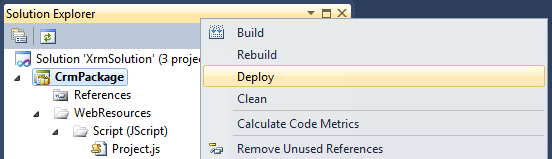
  4. After the script has been saved, you can right click CrmPackage project in Visual Studio Solution Explorer window, and choose "Deploy" to deploy the script to CRM Server. In our case, we will have a Web Resource in CRM called new_Project.

Step 2: Customize CRM Ribbon to Hook up the JS Function

  1. In CRM, create a new solution, and add account entity (the entity in the sub-grid) to the solution.
  2. Export the solution to a .zip file, and extract the file somewhere in your local file system.
  3. Open the customizations.xml from the extracted file, and locate RibbonDiffXml section in the file, under the account entity.


          <RibbonDiffXml>
            <CustomActions />
            <Templates>
              <RibbonTemplates Id="Mscrm.Templates"></RibbonTemplates>
            </Templates>
            <CommandDefinitions />
            <RuleDefinitions>
              <TabDisplayRules />
              <DisplayRules />
              <EnableRules />
            </RuleDefinitions>
            <LocLabels />
          </RibbonDiffXml>
  4. What we need to change is the CommandDefinitions part, which we can get the template code from applicationribbon.xml file (or <entityname>ribbon.xml if it's a system entity) in CRM SDK's resources\exportedribbonxml folder. 
  5. In applicationribbon.xml file (or <entityname>ribbon.xml), locate <CommandDefinition Id="Mscrm.AddExistingRecordFromSubGridAssociated"> line (You can search by addExistingFromSubGridAssociated to get there).
  6. Copy the xml content under <CommandDefinition Id="Mscrm.AddExistingRecordFromSubGridAssociated"> (including itself and its closing tag as well) to the customizations.xml file, so it should look like this.
  7. Modify the JavaScriptFunction part to point to the custom JS function that we previously developed, so it should be something like this:


    The following is the final customization xml.
      <CommandDefinition Id="Mscrm.AddExistingRecordFromSubGridAssociated">
        <EnableRules>
          <EnableRule Id="Mscrm.AppendPrimary" />
          <EnableRule Id="Mscrm.AppendToPrimary" />
          <EnableRule Id="Mscrm.EntityFormIsEnabled" />
        </EnableRules>
        <DisplayRules>
          <DisplayRule Id="Mscrm.AddExisting" />
          <DisplayRule Id="Mscrm.ShowForManyToManyGrids" />
          <DisplayRule Id="Mscrm.AppendPrimary" />
          <DisplayRule Id="Mscrm.AppendToPrimary" />
          <DisplayRule Id="Mscrm.AppendSelected" />
          <DisplayRule Id="Mscrm.AppendToSelected" />
          <DisplayRule Id="Mscrm.CanWriteSelected" />
        </DisplayRules>
        <Actions>
          <JavaScriptFunction FunctionName="addExistingFromSubGridAccount" Library="$webresource:new_Project">
            <CrmParameter Value="SelectedEntityTypeCode" />
            <CrmParameter Value="SelectedControl" />
          </JavaScriptFunction>
        </Actions>
      </CommandDefinition>
    Note that your JS webresource name could be in different format. You can find out that by openning the web resource in CRM, which tells you the path to the web resource file.

  8. Save the file, and zip it back to the original solution export file.
  9. Import the solution file, and publish changes. If everything goes OK, you will see a filtered lookup like the following.

Final Notes

  1. This is an unsupported customization, since we are using undocumented CRM built-in JS functions.
  2. addExistingFromSubGridCustom function is a re-usable function which is what you really need. addExistingFromSubGridAccount function is the actual one that's going to be called in your ribbon command button's customization.
  3. The filter that I have implemented didn't use any context information (such a field value) on the CRM form, you can easily add this in the function when constructing the fetchXml string, if desired.
  4. The above change will apply to all account subgrid regardless of the hosting entity. It should be possible to handle it differently by getting some context information from the form, or probably pass some extra information to the function.
  5. The code didn't have much comments, but hopefully the sample has provided enough information for you to start with.
By the way, an off-topic note, this blog has just reached 100K page views today. It took almost two years to reach 50K pageviews last time, but it only takes a few months to reach another one, although I don't currently produce as many posts as I did in the beginning of my blogging adventure. Good to see the growth of the CRM community.

Hope this helps.

Thursday, November 03, 2011

Add Visual Ribbon Editor to Your CRM Toolbox

Working with CRM ribbon customization could be a very challenging job due to its complexity and the vast options that the CRM platform offers.

Tools BagErik Pool has recently released a tool called Visual Ribbon Editor, which I believe you can now add to your toolbox to make yourself a proud and productive CRM developer. 

Enough though I am not practically working on CRM customizations on a day-to-day basis at this moment, I can tell the tool is sophisticated enough to help you conduct your ribbon customization work in a productive way.

Using the tool, you don't have to do all the wild guess about what you can do with your CRM ribbons. You can now instantly add, remove ribbon button and button groups, apply Display and Enabled rules based on your business requirements through its visual interface.

The following is a screen shot that I have copied from Erik's blog post.
CRM Visual Ribbon Editor
Check out the tool, I believe this is the only CRM ribbon customization tool you will ever need.

Hope this helps.

Monday, March 07, 2011

MSCRM 4.0: Customize the Lookup View of Role Entity

In my current project, I developed a custom workflow called IsUserInRole which helps determine whether a user is in a particular role. It all worked fine, until we deployed the workflows to our UAT and production environments.

Let me try to explain what the problem is. The custom workflow has a lookup input parameter for Role entity which allows the business user to specify a CRM role to test whether the current user or a specified user has that particular role. In our local VPC development environment, we tried to keep everything simple, we only had a root business unit for the CRM installation. So the IsUserInRole workflow can show all the roles in the CRM system without any confusion. But in our UAT and production environments, we had more than one business unit, so all the roles that we created in the root business unit were automatically copied to the child business units, which caused significant confusion for the CRM workflows that used IsUserInRole workflow. When we were trying to use CRM lookup to pick a role, we got something like the following screen shot, which you could see a number of roles in the same name but they actually belonged to different business units. This created a challenge for us, as we could easily pick a wrong role, so that the custom workflow would not function in the way that we expected.
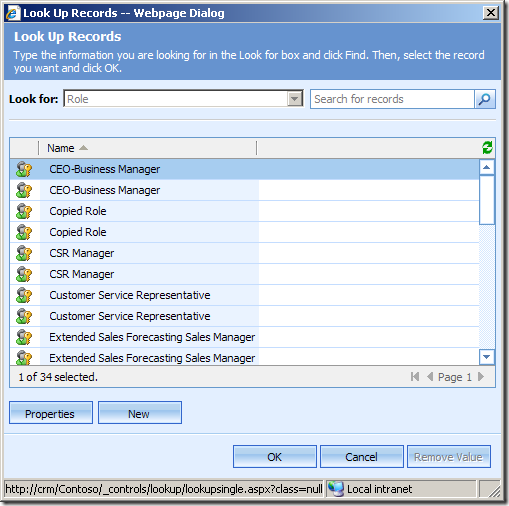
CRM Default Role Lookup View
I first thought this would be an easy job, as CRM allows us to define almost any views. But when I fired up the customization page of Role entity, I realized that is a totally different story, CRM didn't provide a way that allows me to customize any view for role entity. I went on thinking about using exported role entity customization xml file, but I hit a wall again as I noticed that the role entity customization XML file was almost empty, it had no view information or whatsoever in the export xml file.

After a little struggle, I realized that I might be able to take a shortcut by directly typing in CRM view customization page's URL with the view's ID. So I took a peek of CRM database using the following SQL query.
 SQL Query for Role Lookup View
After running the above SQL script, I have got the view's ID. What I need to do next is, go to a customizable entity, and double click one of its views to launch a view customization page, and I press Ctrl+N key to launch the page in a new window so that I can have IE address bar. Then I replace the ID parameter in the address bar with the view ID I have just got from previous SQL query, so that I have a URL in the following format.

http://<CrmServer>/<CrmOrganizationName>/tools/vieweditor/viewManager.aspx?id={61F8D435-8E25-4751-8330-5969506EF536}

As soon as I have the above URL typed in and hit my browser's Go button, I get just a regular view customization screen. Whew!
Edit CRM Role Lookup View
You might already know, as soon as we get to this point, the rest is fairly easy. I added "Business Unit" column to the view using "Add View Columns" button on the right, and then published all CRM customization changes. After that, I came back to my custom workflow and I noticed that I could see the Business Unit column in the lookup view. 
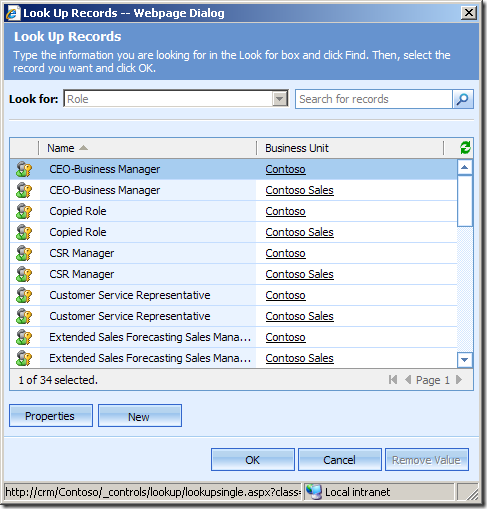
CRM Role Lookup View with Business Unit Column
I believe this technique not only applies to the views of CRM role entity, you should also be able to use it to customize almost all views of core CRM entities such as Team, Queue, Workflow, etc., if you ever happen to have this kind of needs.  

Hope this helps.

P.S. I would have used a different solution for my custom workflow if I foresaw the problem of using Role lookup that I have mentioned, but I do hope this blog post helps if you ever come across similar needs in your project.