Friday, September 09, 2011

Switching CRM Developer Toolkit's Target Environment

It's often the case in our CRM development life that we have the need to change the target development environment from one server to another. Working with the CRM 2011 Developer Toolkit, we can appreciate the productivity that we have gained from the toolkit. However, there wasn't any documentation about how to easily switch target environment using the toolkit.

Here are some little tips that I learned from CRM Development Forum today, that can be used to do so without too much hassles. You can use either one of the following to achieve this.
  1. In Visual Studio's Tools menu, there is a menu item called "Connect to Dynamics CRM Server…". You can simply click it in order to launch CRM connection window where you can enter new connection information to be used to connect to a different server or a different CRM organization.
    image
  2. Delete .suo file from the same folder where your Visual Studio solution file (.sln) resides. After you have done so, the next time you fire up Visual Studio and open the CRM solution again, you will be prompted to enter CRM connection information. What this implies is, the CRM connection settings (including the login credentials) are stored in the .suo file. 
Before knowing the above tricks, I actually raised this as an issue at Microsoft Connect site. To be very honest with you, I tried a number of wild ways to find out how the CRM connection settings are stored and how they can be changed, I did Windows registry search, and I looked into Windows file system for any suspicious activities, nothing led me to a concrete solution. I even came up an idea to stop IIS service in order to fail the connection that Visual Studio is attempting to make, so that it will prompt you to enter new connection settings after the connection fails. I have never thought of .suo file, neither have I ever looked for such options in the Tools menu of Visual Studio!

Knowing the fact that your CRM login credentials are stored in the .suo file, you should be careful when you want to share the file with others. It should also be noted, many developers tend to check-in all files under the Visual Studio solution folder to source control system, including the .suo file. Those of them should be warned or cautioned. Sending .suo file to others and storing it in source control repository should be avoided for security reason.

The tips came from Phil Hand, credit goes to him.

Hope this helps.

Friday, July 29, 2011

MSCRM 2011 Developer Toolkit Walkthrough

As you may have noticed that MSCRM team has released a new version of SDK (v5.0.5) today. The SDK includes a full functioning Developer Toolkit, which, IMHO, marks a significant milestone in CRM development practice. For the first time, the CRM development community has a first-class solution template within Visual Studio. Using the solution template, we can create, develop and deploy CRM Plug-ins, custom workflows, and web resources without having to leave the Visual Studio environment. The toolkit is designed to be a set of integrated tools within Visual Studio which help improve development productivity for Microsoft Dynamics CRM 2011 and Microsoft Dynamics CRM Online.

This blog post will walk you through some typical CRM development scenarios, which I hope can help you become familiar with the new toolkit, so that you can take full advantage of it.

Prerequisites

The Developer Toolkit requires the following components

Installation of the Toolkit

The installation package of the toolkit can be found in the SDK download package at SDK\Tools\DeveloperToolkit. Double click "CrmDeveloperTools_Installer.msi" to install the toolkit.
Note: If you happen to have a previous version of the toolkit installed, you need to uninstall it first before installing the new version.

Note: The Developer Toolkit does not support Visual Basic .NET. If you happen to be a VB.NET developer, you will have to think about switching to C#. I doubt there is any plan to release VB.NET version of the toolkit anytime soon.

Create a New CRM Solution

To create a new CRM solution using the solution template provided by the toolkit, please follow the procedures below.
  1. Within Visual Studio 2010, click File –> New –> Project menu.
  2. In the "New Project" window, navigate to "Dynamics CRM" under "Visual C#", and choose "New Visual Studio Solution Template for Dynamics CRM 2011", and enter a solution name before click "OK" button. 
    0 - New CRM Solution Template
  3. You will be prompted to enter CRM server connection information as shown below. Provide the name of your CRM server, and click "Connect" button. 
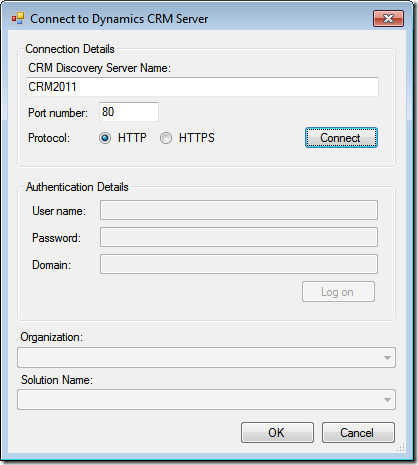
    1 - Enter CRM Discovery Server Name and Connect
  4. Then you will need to provide authentication information in order to connect to the CRM discovery server. After you have done so, you can click "Log on" button. 
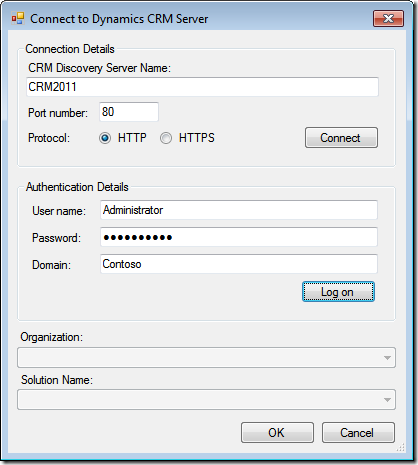
    2 - Enter Authentication Details to Log on
  5. You will now be asked to choose a CRM organization and a solution that you would like to work on. After you have provided all information required, you may click "OK" button now. 
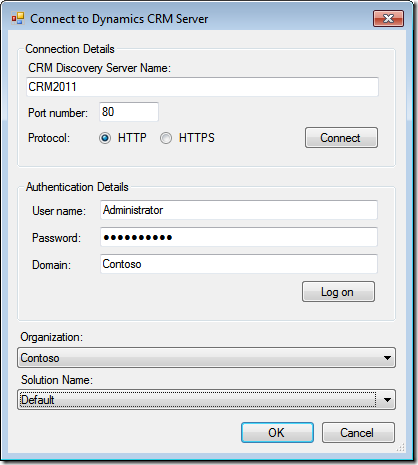
    3 - Pick Organization and Solution Name
  6. By default, the CRM solution template will create a Silverlight project, and a companion web project for you. Enter the Silverlight web project name and click "OK" button to continue. 
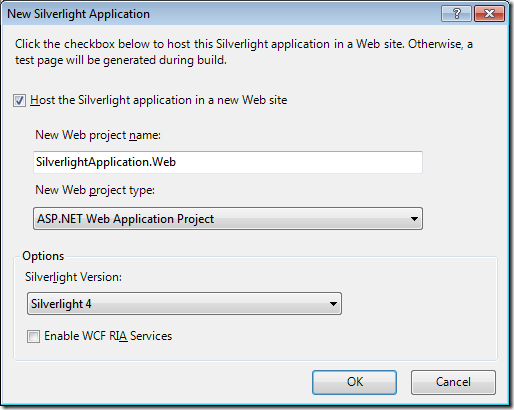
    4 - Create New Silverlight Application by Specifying the Application Name
    Note: You may not necessarily need Silverlight project in your CRM solution, but you should simply provide a Silverlight web project name in order to make the solution template wizard happy so that it can finish its own job. You can later delete the Silverlight projects if you don't actually need them.

    Note:
    If you don't currently have Silverlight Developer toolkit installed on your computer, you will be prompted the following window. 
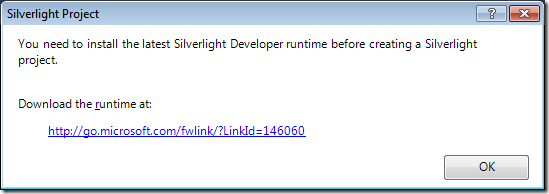
    4 - Silverlight Developer runtime required for CRM Developer Toolkit
  7. If everything goes fine, you will see a screen of Visual Studio as shown below. Notice that the wizard has created a Visual Studio solution which consists of a few projects, including:
    Project Role in Solution
    CrmPackage The manifest project that that contains all assets to be deployed to Microsoft Dynamics CRM, combined with their deployment settings
    Note: You should never delete this project in your CRM solution.
    Plugins The Plugins project contains a base class named Plugin. All plug-in classes generated through the Create Plug-in option of the CRM Explorer will derive from this class. This class simplifies some of the plumbing code that's required by many plug-ins.
    SilverlightApplication A sample Silverlight project that can be used as the starting point to develop your Silverlight web resource.
    SilverlightApplication.Web A companion web project that host the above Silverlight project, and can be used to test the Silverlight project.
    Workflow The Workflow project provides support for implementing custom workflow activities to be used for your on-premises Microsoft Dynamics CRM instance.
    Note: Microsoft Dynamics CRM Online does not currently support Custom workflow libraries, so you may delete this project if you are working for Microsoft Dynamics CRM Online.
    5 - Generated New CRM Solution
    Note: In the above screen, you can see a new window called "CRM Explorer", which I will explain in details next.
  8. Once the CRM solution has been created, the first thing you should do is to sign both your Plugins and Workflow projects with a strong name key file. You may sign your projects with a new key file or an existing one if you already have. 
    6 - Sign CRM Plug-in and Workflow Projects with Strong Name File

Use of "CRM Explorer" Window

CRM Explorer is a very useful window that's designed to help you navigate through any customizable components on your CRM server in an organized fashion.
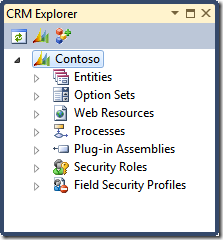
6 - CRM Explorer
As shown above, CRM Explorer presents you a tree window that you can use mouse click to navigate through the solution components that you are interested in. The following is a screen that shows how it looks like when it has been expanded (I truncated some entities in the screen to make it concise).
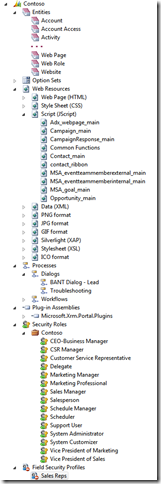
8 - Expanded CRM Explorer
In addition to the navigation features, CRM Explorer allows you to open the CRM solution component in Visual Studio browser when you double click the item. The following screen shows how it looks like when you double click a CRM entity (Account entity in this case) in the explorer.
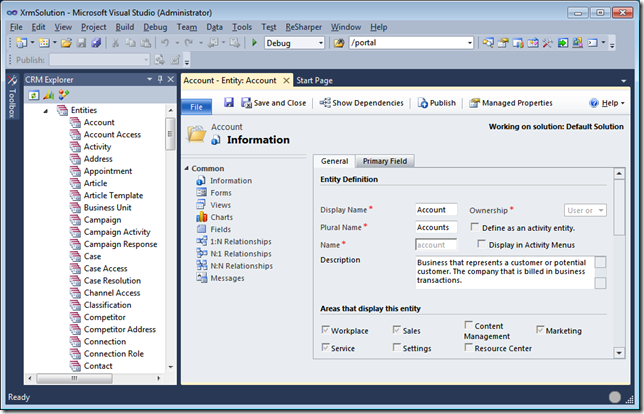
11 - Open CRM Customization Page in Visual Studio
Another great feature offered by CRM Explorer is, you can perform certain tasks by using context menu commands when you right-click on a specific item. The following is a list of some typical scenarios that you would use the right click commands in CRM Explorer.
  1. Generate CRM Service Proxy Classes
    Context Entities
    Command Generate Wrapper
    Description Executes CrmSvcUtil.exe to generate the strongly typed proxy classes. If you only have one plug-in project, this class will automatically be added to this project; otherwise, the Generate Entity Wrappers dialog box will allow you to choose which Project to create the classes in.
    Steps
    • Right click on "Entities" node in CRM Explorer window
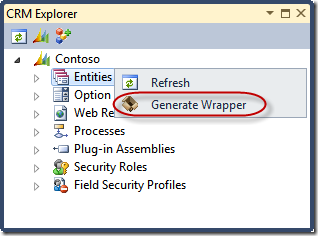
      13 - Generate CRM Service Proxy Classes in CRM Explorer
    • Choose which project that you want the proxy classes to reside in
      14 - Choose which Project the CRM Service Proxy Classes Reside In
    • Wait until it finishes generating the proxy classes, this could take a few minutes depending on the complexity of your customizations and your hardware configuration.
      15 - Generating CRM Service Proxy Classes
    • The following is a screen of the generated code. 
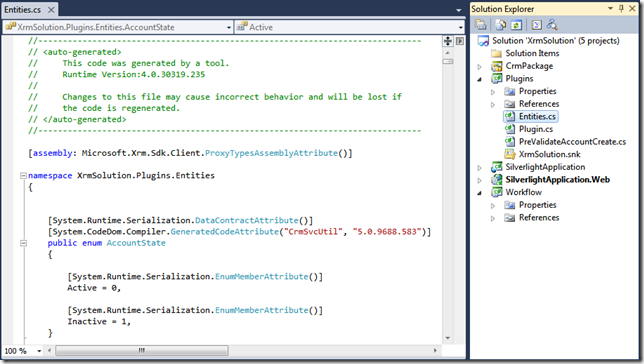
      16 - Generated CRM Service Proxy Classes
  2. Create Plugin for CRM entities
    Context Entities –> Specific Entity
    Command Create Plugin
    Description Opens the Create Plug-in dialog with the Primary Entity set to the selected entity.
    Steps
    • Right click a specific entity that you would like to create a plug-in, and choose "Create Plug-in" from the command menu
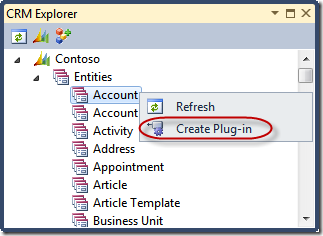
       16 - Generate CRM Plug-in in CRM Explorer
    • Specify the details of the CRM Plugin 
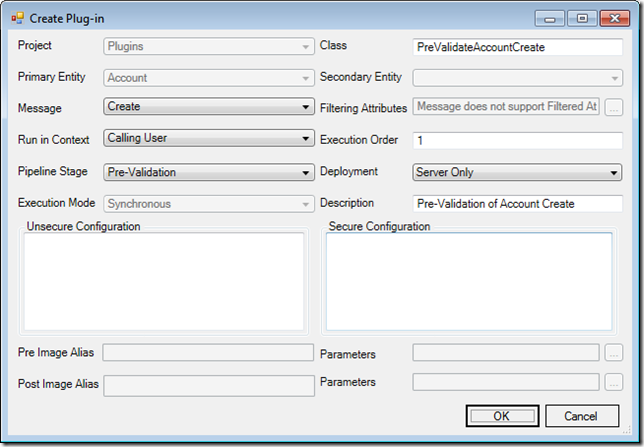
      17 - Create CRM Plug-in
    • Once the plugin code has been generated, you can see that the new plugin class inherits from the base Plugin class
      18 - Generated CRM Plug-in
  3. Add Web Resource items from CRM Server to the packaging project
    Context Web Resources  or Web Resources -> Web Resource Type   or
    Web Resources -> Web Resource Type –> Specific Web Resource
    Command Add to packaging project
    Description Add selected web resources from the CRM organization to the CrmPackage project.
    Steps
    • Right click specific web resource item, a web resource type, or the Web Resources folder, and choose "Add to packaging project" from the command menu 
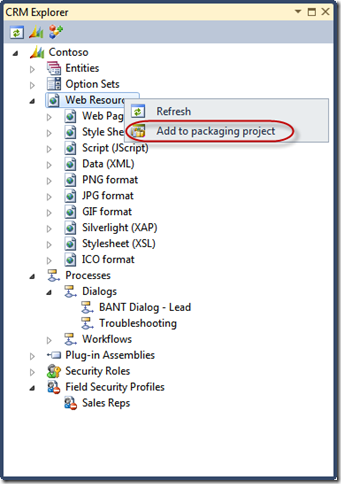
      9 - Add Web Resources to CRM packaging project 
    • You should be able to see the selected web resources added to your CrmPackage project, from there you can work with the CRM Web Resources just like any other source code files.  
      10 - Added Web Resources 
  4. Add, Edit, Delete Plugin  
    Context Plug-in Assemblies -> Specific Assembly   or
    Plug-in Assemblies -> Specific Assembly -> Specific Plugin
    Command Add Plugin Edit Plugin Delete Plugin
    Description Add, edit or delete CRM plugins.
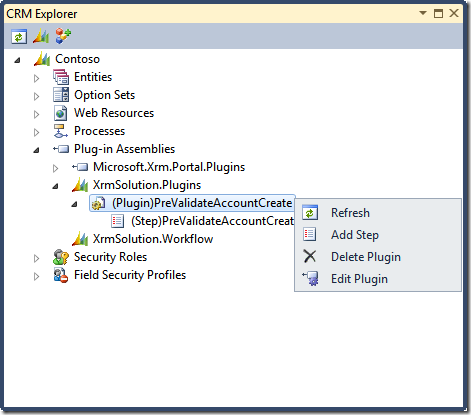
    21 - Add plugin in CRM Explorer
    22 - Edit, delete plugin in CRM Explorer
  5. Add, Edit, Delete Plugin Steps  
    Context Plug-in Assemblies -> Specific Assembly -> Specific Plugin   or
    Plug-in Assemblies -> Specific Assembly -> Specific Plugin -> Specific Step
    Command
    Add Step
    Edit Step
    Delete Step
    Description Add, edit or delete CRM plugin steps.
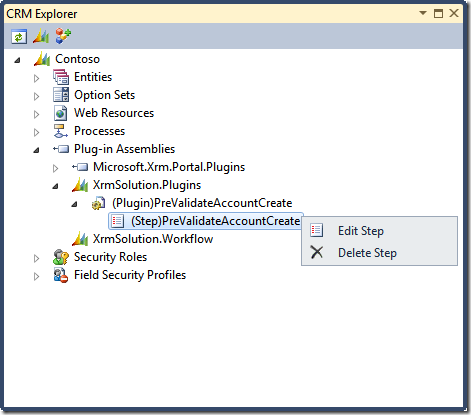
    23 - Edit plugin step in CRM Explorer

Use of "CrmPackage" Project in "Solution Explorer" Window

CrmPackage project is a specially engineered Visual Studio project template designed to manage all CRM solution components within a single place.
  1. Manage CRM Web Resource Metadata Attributes CRM Web Resource has certain metadata attributes associated, which dictate how the web resource items can be accessed and managed in CRM system. To change a web resource item's metadata attributes, you can click any particular web resource item in Solution Explorer window to open its Properties window, where you can change or update any properties as necessary. 
    19 - Manage Web Resource Properties
  2. Manage Silverlight Web Resource Metadata Attributes Silverlight web resource is a special web resource type which is added to CrmPackage project through project reference. In order to change Silverlight web resource's metadata attributes, you need to expand CrmPackage project's References node, and click on the particular reference item, so that you can change or update any metadata attributes in Properties window as needed. 
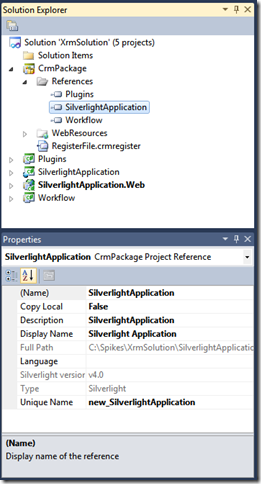
    20 - Manage Silverlight Web Resource Properties
Note: The above two approaches are particularly useful if you have any source code files that are not currently managed by CRM Server yet, but you want to publish them to CRM Server, in which case, you can use Visual Studio's Add Existing Items command to add them to CrmPackage project, then you would provide necessary metadata attributes before you can actually deploy them to CRM server.

Publish Changes to CRM Server

After you have done all the good hard work on your CRM solution, you are ready to publish your changes back to CRM Server. The CRM Solution template has made this significantly easy, you can right-click the CrmPackage project, and choose "Deploy" from the command menu, all the changes will be published to CRM Server after all referenced projects have been successfully compiled.
24 - Deploy CrmPackage
Note: You need to make sure that you have signed all plugin and workflow projects in order for Visual Studio to be able to publish them to CRM Server.

I have tried to cover some most common development scenarios using the toolkit in this blog post, but I am sure that there are many other things that I haven't covered, which you can explorer by reading the user guide document that you can find from the SDK.

Note that the toolkit is currently a beta version. I have encountered a few minor issues when using it. Overall, it's a great productivity tool for CRM development. Great job by the CRM team.

Please let me know if there are any errors or typos in this post.

Hope this helps. Cheers!

MSCRM 2011 SDK v5.0.5 Released

I don't usually blog about any CRM SDK or rollup releases, but here is an exception.

Microsoft Dynamics CRM team has just release CRM 2011 SDK v5.0.5 today. Among many cool other stuff in the new SDK release, I want to highlight two that you should check out.
  • There is a Beta version of the Developer Toolkit for CRM 2011 and Online included in the SDK! The toolkit comes with an installation program and a Developer Toolkit User's Guide.docx for documentation. 
  • There is a new tool in the SDK release which can be used to analyze the performance of CRM plug-ins. The tool is called the Plugin Profiler
The most important thing is the Developer Toolkit, which, I believe, marks a significant milestone in CRM development practice. I have been very excited today because of the toolkit, since this is the first time that I have actually touched it. Very impressive, great job by CRM team.

Note that there is currently no documentation available for the plugin profiler tool, which will be available in the next release of SDK document, according to the SDK release notes.

Among many other cool stuff, here are a few that might interest you (excerpt of the SDK release notes with some editing).
  • Updated the assemblies for Microsoft Dynamics CRM 2011 Update Rollup 3. For Microsoft Dynamics CRM Online, updates are installed for you. For other deployment types, you can get update rollups from the Microsoft Download Center or from Microsoft Update.
  • Added quite some more sample code for Microsoft Visual Basic .NET.
  • Added some new guideline documents
  • Added a sample extension for the CrmSvcUtil.exe program that generates a file containing enumerations for all option sets, state codes, and status codes.
  • Added some new sample code:
    • Sample: Associate and Disassociate Records Using the REST Endpoint with JScript
    • Sample: Associate and Disassociate Records Using the REST Endpoint with Silverlight
    • Sample: Distribute Campaign Activities to Dynamic and Static Lists
    • Sample: Work with Activity Party Records
A full release history of CRM SDK can be found at the SDK's first page.

Hope this helps.

Cheers!

Friday, July 01, 2011

Hey, I am a Microsoft MVP now

I found that it was a very pleasant experience during the last couple of years while I was working with Microsoft Dynamics CRM and related .NET technology. Today there came a new surprise and a privilege that I received an email this morning from Microsoft team which informed me that I have been awarded as a Microsoft Dynamics CRM MVP.
MVP550x222

I would like to say thanks to the CRM community, it's a very generous community that people really liked to share their working knowledge of Microsoft Dynamics CRM product. Particularly I want to thank the fellow CRM MVPs, Andriy Butenko, Dave Berry, David Jennaway, and also Jim Glass (who is a Microsoft fellow and a CRM community lead), for the tremendous support that I have received from them on CRM Development Forum. I also hope to extend my appreciation to Microsoft Community & Online Support team, and the MVP leads from Microsoft Canada, for their recognition of my contribution in the CRM community, even though I consider my contribution significantly trivial.

I want to thank Microsoft Dynamics CRM team for their hard work to keep evolving the product into a better and better development platform in the past few years. CRM platform has got great potentials in the future, keep up all the good work, folks!

From the community perspective, I have recently noticed some very talented resources in the forums after CRM 2011 has been released, I would like to thank those of you for your hard work and the contributions that you have made to the community. You can be assured that your contributions will be recognized as well one day, we need more MVPs to help grow the community!

Cheers,
Daniel

Tuesday, June 28, 2011

Step-by-step Walkthrough: Use CRM 2011 Organization (SOAP) Service from a Console Application

[DISCLAIMER] This blog post should be used for reference only, I wouldn't recommend using this approach in your production code, since many default options generated by WCF service reference don't actually work for CRM2011, and also it would require significant effort to make it work for CRM Online and IFD deployments. In addition to this blog post, you should check out Girish Raja's TechEd session[END OF DISCLAIMER]

This blog post describes how to consume CRM 2011 Organization (SOAP) services from a console application, which can also be used for your Windows Service, Windows Form application, and probably even another WCF service that you may want to develop in order to delegate the service calls to CRM Server. This can be considered as a supplementary guideline of CRM SDK document, which is currently missing as of the latest SDK v5.0.4.

This blog post is primarily inspired by and based on CRM document - Walkthrough: Use the SOAP Endpoint for Web Resources with Silverlight.

Let's get started.

Create the Silverlight Project in Visual Studio 2010

In Visual Studio 2010 create a Console application. This walkthrough will use the name SoapFromConsoleApp, but you can use whatever name you wish. You will need to make changes as necessary because the name of the project is also the default namespace for the application.

Add a Service Reference to the Organization Service.

In the SoapFromConsoleApp project, right-click References and select Add Service Reference from the context menu.
  1. In the Add Service Reference dialog box type the URL to the Organization service and click Go.
    The URL to the service is located on the Developer Resources page of Microsoft Dynamics CRM 2011. In the Settings area select Customizations and then select Developer Resources.
    The URL has the format <organization URL>/XRMServices/2011/Organization.svc
  2. Enter a namespace in the Namespace field and then click OK.
    This walkthrough will use the namespace CrmSdk.
Add Supporting Classes and Edit files
  1. In the SoapFromConsoleApp project, add a new file with a class called XrmExtensionMethods.cs with the following code. The namespace for this class must match the namespace of your project.


    using System;
    using System.Collections.Generic;
    using System.Runtime.Serialization;
    
    namespace SoapFromConsoleApp.CrmSdk
    {
        partial class Entity
        {
            public Entity()
            {
                this.FormattedValuesField = new FormattedValueCollection();
                this.RelatedEntitiesField = new RelatedEntityCollection();
            }
    
            public T GetAttributeValue<T>(string attributeLogicalName)
            {
                if (null == this.Attributes) { this.Attributes = new AttributeCollection(); };
    
                object value;
                if (this.Attributes.TryGetValue(attributeLogicalName, out value))
                {
                    return (T)value;
                }
    
                return default(T);
            }
    
            public object this[string attributeName]
            {
                get
                {
                    if (null == this.Attributes) { this.Attributes = new AttributeCollection(); };
                    return this.Attributes.GetItem(attributeName);
                }
    
                set
                {
                    if (null == this.Attributes) { this.Attributes = new AttributeCollection(); };
                    this.Attributes.SetItem(attributeName, value);
                }
            }
        }
    
        [KnownType(typeof(AppointmentRequest))]
        [KnownType(typeof(AttributeMetadata))]
        [KnownType(typeof(ColumnSet))]
        [KnownType(typeof(DateTime))]
        [KnownType(typeof(Entity))]
        [KnownType(typeof(EntityCollection))]
        [KnownType(typeof(EntityFilters))]
        [KnownType(typeof(EntityMetadata))]
        [KnownType(typeof(EntityReference))]
        [KnownType(typeof(EntityReferenceCollection))]
        [KnownType(typeof(Label))]
        [KnownType(typeof(LookupAttributeMetadata))]
        [KnownType(typeof(ManyToManyRelationshipMetadata))]
        [KnownType(typeof(OneToManyRelationshipMetadata))]
        [KnownType(typeof(OptionSetMetadataBase))]
        [KnownType(typeof(OptionSetValue))]
        [KnownType(typeof(PagingInfo))]
        [KnownType(typeof(ParameterCollection))]
        [KnownType(typeof(PrincipalAccess))]
        [KnownType(typeof(PropagationOwnershipOptions))]
        [KnownType(typeof(QueryBase))]
        [KnownType(typeof(Relationship))]
        [KnownType(typeof(RelationshipMetadataBase))]
        [KnownType(typeof(RelationshipQueryCollection))]
        [KnownType(typeof(RibbonLocationFilters))]
        [KnownType(typeof(RollupType))]
        [KnownType(typeof(StringAttributeMetadata))]
        [KnownType(typeof(TargetFieldType))]
        partial class OrganizationRequest
        {
            public object this[string key]
            {
                get
                {
                    if (null == this.Parameters) { this.Parameters = new ParameterCollection(); };
    
                    return this.Parameters.GetItem(key);
                }
    
                set
                {
                    if (null == this.Parameters) { this.Parameters = new ParameterCollection(); };
    
                    this.Parameters.SetItem(key, value);
                }
            }
        }
    
        [KnownType(typeof(AccessRights))]
        [KnownType(typeof(AttributeMetadata))]
        [KnownType(typeof(AttributePrivilegeCollection))]
        [KnownType(typeof(AuditDetail))]
        [KnownType(typeof(AuditDetailCollection))]
        [KnownType(typeof(AuditPartitionDetailCollection))]
        [KnownType(typeof(DateTime))]
        [KnownType(typeof(Entity))]
        [KnownType(typeof(EntityCollection))]
        [KnownType(typeof(EntityMetadata))]
        [KnownType(typeof(EntityReferenceCollection))]
        [KnownType(typeof(Guid))]
        [KnownType(typeof(Label))]
        [KnownType(typeof(ManagedPropertyMetadata))]
        [KnownType(typeof(OptionSetMetadataBase))]
        [KnownType(typeof(OrganizationResources))]
        [KnownType(typeof(ParameterCollection))]
        [KnownType(typeof(QueryExpression))]
        [KnownType(typeof(RelationshipMetadataBase))]
        [KnownType(typeof(SearchResults))]
        [KnownType(typeof(ValidationResult))]
        partial class OrganizationResponse
        {
            public object this[string key]
            {
                get
                {
                    if (null == this.Results) { this.Results = new ParameterCollection(); };
    
                    return this.Results.GetItem(key);
                }
            }
        }
    
        public static class CollectionExtensions
        {
            public static TValue GetItem<TKey, TValue>(this IList<KeyValuePair<TKey, TValue>> collection, TKey key)
            {
                TValue value;
                if (TryGetValue(collection, key, out value))
                {
                    return value;
                }
    
                throw new KeyNotFoundException("Key = " + key);
            }
    
            public static void SetItem<TKey, TValue>(this IList<KeyValuePair<TKey, TValue>> collection, TKey key, TValue value)
            {
                int index;
                if (TryGetIndex<TKey, TValue>(collection, key, out index))
                {
                    collection.RemoveAt(index);
                }
    
                //If the value is an array, it needs to be converted into a List. This is due to how Silverlight serializes
                //Arrays and IList<T> objects (they are both serialized with the same namespace). Any collection objects will
                //already add the KnownType for IList<T>, which means that any parameters that are arrays cannot be added
                //as a KnownType (or it will throw an exception).
                Array array = value as Array;
                if (null != array)
                {
                    Type listType = typeof(List<>).GetGenericTypeDefinition().MakeGenericType(array.GetType().GetElementType());
                    object list = Activator.CreateInstance(listType, array);
                    try
                    {
                        value = (TValue)list;
                    }
                    catch (InvalidCastException)
                    {
                        //Don't do the conversion because the types are not compatible
                    }
                }
    
                collection.Add(new KeyValuePair<TKey, TValue>() { Key = key, Value = value });
            }
    
            public static bool ContainsKey<TKey, TValue>(this IList<KeyValuePair<TKey, TValue>> collection, TKey key)
            {
                int index;
                return TryGetIndex<TKey, TValue>(collection, key, out index);
            }
    
            public static bool TryGetValue<TKey, TValue>(this IList<KeyValuePair<TKey, TValue>> collection, TKey key, out TValue value)
            {
                int index;
                if (TryGetIndex<TKey, TValue>(collection, key, out index))
                {
                    value = collection[index].Value;
                    return true;
                }
    
                value = default(TValue);
                return false;
            }
    
            private static bool TryGetIndex<TKey, TValue>(IList<KeyValuePair<TKey, TValue>> collection, TKey key, out int index)
            {
                if (null == collection || null == key)
                {
                    index = -1;
                    return false;
                }
    
                index = -1;
                for (int i = 0; i < collection.Count; i++)
                {
                    if (key.Equals(collection[i].Key))
                    {
                        index = i;
                        return true;
                    }
                }
    
                return false;
            }
        }
    
        [KnownType(typeof(QueryBase))]
        [KnownType(typeof(Relationship))]
        [KnownType(typeof(EntityCollection))]
        [DataContract(Namespace = "http://schemas.datacontract.org/2004/07/System.Collections.Generic")]
        public sealed class KeyValuePair<TKey, TValue>
        {
            #region Properties
            [DataMember(Name = "key")]
            public TKey Key { get; set; }
    
            [DataMember(Name = "value")]
            public TValue Value { get; set; }
            #endregion
        }
    
        #region Collection Instantiation
        partial class EntityCollection
        {
            public EntityCollection()
            {
                this.EntitiesField = new Entity[]{};
            }
        }
    
        partial class Label
        {
            public Label()
            {
                this.LocalizedLabelsField = new LocalizedLabelCollection();
            }
        }
    
        #endregion
    }
    
    
  2. Edit the SoapFromConsoleApp\Service References\CrmSdk\Reference.svcmap\Reference.cs file. Change each instance of "System.Collections.Generic.KeyValuePair<" to "KeyValuePair<". This will change the reference from System.Collections.Generic.KeyValuePair to the class defined in the XrmExtensionMethods.cs file.

    You should find 22 instances.

    If you do not see the Reference.cs file, in the Solution Explorer, click the Show All Files button.
Consume the Organization Services
  1. Double click Program.cs to open the file.
  2. Paste the following code to the file.
    using System;
    using SoapFromConsoleApp.CrmSdk;
    
    namespace SoapFromConsoleApp
    {
        class Program
        {
            static int MaxRecordsToReturn = 1;
    
            static void Main(string[] args)
            {
                using (var xrmServiceClient = InstantiateXrmService())
                {
                    var accountId = CreateCrmAccount(xrmServiceClient);
    
                    var account = QueryCrmAccount(xrmServiceClient, accountId);
    
                    UpdateCrmAccount(xrmServiceClient, account);
    
                    DeleteCrmAccount(xrmServiceClient, accountId);
                }
            }
    
            private static Guid CreateCrmAccount(OrganizationServiceClient xrmServiceClient)
            {
                var account = new Entity
                {
                    LogicalName = "account"
                };
    
                account["name"] = "ABC Inc.";
                account["telephone1"] = "111-222-3333";
    
                return xrmServiceClient.Create(account);
            }
    
            private static Entity QueryCrmAccount(OrganizationServiceClient xrmServiceClient, Guid accountId)
            {
                var query = new QueryExpression
                                {
                                    EntityName = "account",
                                    ColumnSet = new ColumnSet { Columns = new string[] {"name"}},
                                    Orders = new []
                                                 {
                                                     new OrderExpression() {AttributeName = "name", OrderType = OrderType.Ascending}
                                                 },
                                    Criteria = new FilterExpression()
                                                   {
                                                       Conditions = new []
                                                                        {
                                                                            new ConditionExpression
                                                                                {
                                                                                    AttributeName = "accountid",
                                                                                    Operator = ConditionOperator.Equal,
                                                                                    Values = new object[] {accountId}
                                                                                }
                                                                        }
                                                   },
                                    PageInfo = new PagingInfo {Count = MaxRecordsToReturn, PageNumber = 1, PagingCookie = null},
                                };
    
                var request = new OrganizationRequest() { RequestName = "RetrieveMultiple" };
                request["Query"] = query;
    
                OrganizationResponse response = xrmServiceClient.Execute(request);
                var results = (EntityCollection)response["EntityCollection"];
    
                return results.Entities[0];
            }
    
            private static void UpdateCrmAccount(OrganizationServiceClient xrmServiceClient, Entity account)
            {
                account["name"] = "ABC Ltd.";
                xrmServiceClient.Update(account);
            }
    
            private static void DeleteCrmAccount(OrganizationServiceClient xrmServiceClient, Guid accountId)
            {
                xrmServiceClient.Delete("account", accountId);
            }
    
            private static OrganizationServiceClient InstantiateXrmService()
            {
                var xrmServiceClient = new OrganizationServiceClient();
    
                // Uncomment the following line if you want to use an explicit CRM account to make the service calls
                // xrmServiceClient.ClientCredentials.Windows.ClientCredential = new NetworkCredential("administrator", "admin", "Contoso");
    
                return xrmServiceClient;
            }
        }
    }
  3. Compile and run the application.
In the above console application, I have shown you how to CRM account record, query it, then update it by change its name, and delete it at last.

Note that this is an old-fashioned way to make service calls to CRM server (which might be the reason that this is not in CRM SDK document), but I believe there are scenarios that you might need this approach.
Finally, if you run into any problem using the code, please let me know. I realized that I might need to look into the SetItem method a little further to make sure the serialization is done properly, since the code was taken from CRM SDK Silverlight project. If you have already spotted any problem, please kindly let me know.

I have also provided a download link of the entire project that I compiled (on SkyDrive).

Hope this helps.

Saturday, April 09, 2011

Microsoft Dynamics CRM 2011 JavaScript Development Cheat Sheet

Microsoft Dynamics CRM 2011 has dramatically changed the JavaScript programming experience when compared to CRM4. So I thought a cheat sheet (or a quick reference document) would help myself get familiar with the latest programming interface. You may download it from the following link on my Windows Live SkyDrive. (Also available at Google Site).


On a side note, some of you may have been curious about (or possibly somehow frustrated by) such API level changes made by MSCRM team in CRM v2011. I think the changes are made for good reasons.
  1. The first motivation is really about the industry standard of JavaScript development. In CRM 4, we use crmForm.all.xxx syntax everywhere, which is really convenient. But it is actually against the best practice in JavaScript development, as this technique is not supported by any other browsers. You may think that CRM2011 is only supported by IE at this moment anyway, why would I care about any other browsers. You are right, CRM2011 is not a cross-browser application, but it doesn't mean that is going to be the case forever. I am relatively confident that the next MSCRM will be a cross-browser one. In fact, I had a close look of some CRM 2011 JavaScript code the other day, I was under the impression that CRM team (probably part of the team) might have tried to make MSCRM 2011 a cross-browser one, but they didn't make the cut for some reasons.
  2. The new CRM 2011 library provides a lot more richer API than CRM4. So we shall require less hacking code if we can take full advantage of the new library, which makes our code more compatible with the future versions.
Note that this cheat sheet primarily focused on the development of CRM form scripts. It didn't cover all aspects of CRM client development practice. If you need a more comprehensive reference of CRM 2011 development practice, SDK document (Download Link) is the best resource available.

As a final note, you should quit using crmForm.all.xxx syntax in CRM 2011 if you are still doing so. ;-)

I hope the cheat sheet useful, and it worths a small spot on your cubicle wall(s). ;-)

[Update - Jun 6, 2011] I uploaded a new version with many fixes of the problems caused by copy/paste. I didn't realize the problems until last week, mainly because I don't work with CRM on day-to-day basis. Sorry for the inconvenience.