Wednesday, November 24, 2010

JavaScript Snippet: Test Whether a JavaScript Variable is Regular Expression

Here is a short snippet if you ever need to check whether a JavaScript variable is regular expression.

function isRegExp(obj) {
   return Object.prototype.toString.call(obj) === '[object RegExp]';
};

You might be wondering why on the earth you ever need this function. It could be when you want to develop a validation framework that takes a variable for validation purpose, and you want to make the validation framework flexible as flexible as possible, so that the variable could be a function, string or even a regular expression. Your validation framework would do different thing based on the type of the validation variable that is passed to the framework. Hope this makes sense to you now, maybe you have a totally different reason for using it, which is absolutely up to you... :-)

[UPDATE - Dec 10, 2010]: A couple of hours after I published the original blog post, I figured that I should be able to use JavaScript instanceof operator to achieve the same purpose, which could be an easier solution. But further reading indicated that will not work correctly if you are evaluating a cross-frame RegExp object. If you are interested, you may continue reading a very detailed explanation with regard to a similar testing of JavaScript Array object. I have also updated my code a little bit so it looks pretty much the same as kangax's isArray function now, shamelessly. ^_^

A lesson learned from this is, you should only trust JavaScript instanceof operator if your code never has the need to go cross frames. If you want a robust solution to evaluate the type of a JavaScript object, you better take the similar approach as I have just illustrated you.

You can always expect some surprise from JavaScript. Stay tuned until next time.

Sunday, August 15, 2010

Yet Another Error when Exporting/Publishing CRM Customizations

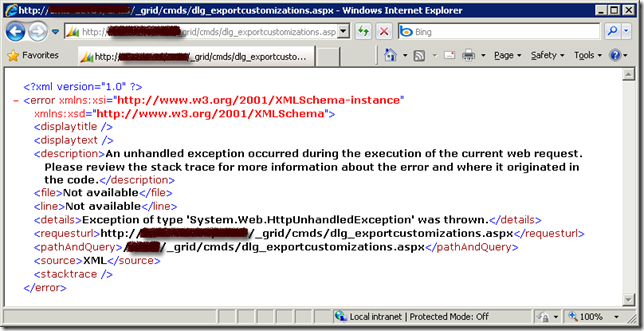
Not long after I had a CRM customization export exception that I documented previously, I ran into another CRM customization related error. It happened to me when I try to export/publish one of my CRM entities, what I got is a screen shot like this.
Customization Export Error

The key message here is , "An unhandled exception occurred during the execution of the current web request. Please review the stack trace for more information about the error and where it originated in the code. "

This is a very generic message that doesn't give me much information about the exception. So I turn on CRM trace log, and what I got from trace log was not much helpful either. It simply says, "System.Reflection.TargetInvocationException: Exception has been thrown by the target of an invocation. ---> System.NullReferenceException: Object reference not set to an instance of an object.".

Microsoft knowledge base article 947096 has given a solution for this error. But I was not able to find any offending attributes by following the instruction. So I had to look for a solution for the error, here is what I have come up after digging information from Google and the CRM forum (The error occurred to me about a month ago, but I just got time to document the solution, I can not find the particular thread any more at the time I am writing this blog post, which is the primary reason that I want to write the blog post since the helpful information is not easy to find, and it was buried in a very long thread).

  1. The first thing you need to do is to identify the offending entity if you don't know yet. You may try to utilize the Binary Search algorithm that you have learned in school (or somewhere else) to help you find the entity. The way to work is, you start by publishing the first half set of all CRM entities, if you run into error, then the offending entity must belong to the first half set. If you don't run into any error, then the offending must belong to the second half set. Keep doing this until you find the one. Suppose that we have identified that new_offendingentity is the entity that caused us grief.
  2. Launch SQL Management Studio and connect to CRM database. (Make sure that you make a full backup of your CRM database before proceeding to next step)
  3. Identify the culprit CRM fields. In order to identify the columns that ceased the problem, you can execute the following SQL script.
    SELECT * FROM OrganizationUIBase
    WHERE ObjectTypeCode IN (
        SELECT ObjectTypeCode FROM MetadataSchema.Entity
        WHERE Name='new_offendingentityname'
    )
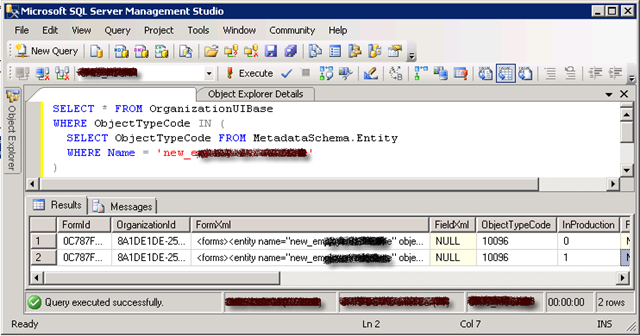
    SQL Query to Find Offending FormXML
    After running the SQL script, you should get two records as shown below. One record has InProduction = 0, another one has InProduction = 1. They basically represent the customization XML that you are drafting, and the customization XML that is already published.
    The column that should interest you is FormXml (the one has InProduction = 1). You may copy the content of FormXml column to an XML editing tool, such as Visual Studio (you can use Visual Studio formatting tool to make it more readable by pressing Ctrl+K following Ctrl+D), and inspect the XML string. At the same time, you can open your entity's customization page, and navigate to its Attributes page so that you can see all fields that belong to the offending entity. If you look carefully enough, you should be able to find out, one (or more, but most likely one) of CRM fields in the XML is missing from the actual entity customization, which is the cause of the problem. If you cannot determine the offending CRM fields, you should not proceed to next step, in which case you might want to inspect the record that has InProduction = 0, this is where the solution documented in the knowledge base article can come to rescue you.

    After you have determined the missing field, you are now ready to take action to correct the issue.
  4. Execute the following SQL script to delete the offending FormXml record that has been published.
    DELETE FROM OrganizationUIBase
    WHERE ObjectTypeCode IN (
        SELECT ObjectTypeCode FROM MetadataSchema.Entity
        WHERE Name='new_offendingentityname'
    )
    AND InProduction = 1
    SQL Query to Fix Offending FormXML
  5. After you have successfully deleted the offending FormXml record, you should now be able to export and publish the customizations of the involved entity.
PLEASE BE ADVISED, any direct change made to CRM database could cause potential problem to the application, make sure to have a full database backup before doing so.

The cause of the problem is that there is orphan or missing field in your published FormXML which was not documented in the mentioned Microsoft knowledge base article.

Hope this helps if you ever run into the same error.

Wednesday, July 07, 2010

CRM Export Customization Error and Workflow "Query Builder Error - No Entity"

I was recently promoting some significant customization changes from one environment (DEV) to another (UAT). Since the changes involved some physical name changes of a few CRM entities and attributes, so I have to delete all those involved entities and import the customizations that I have exported from DEV. The import on UAT was successful, and the application simply runs fine until I was trying to export all customizations on UAT, which gives me the following stunning error message - "The entity with ObjectTypeCode = 100xx was not found in the MetadataCache":
<?xml version="1.0" ?>
<error xmlns:xsi="http://www.w3.org/2001/XMLSchema-instance" xmlns:xsd="http://www.w3.org/2001/XMLSchema">
<code>0x80041102</code>
<displaytitle>Query Builder Error</displaytitle>
<displaytext>No Entity</displaytext>
<description>The entity with ObjectTypeCode = 10088 was not found in the MetadataCache.</description>
<file>Not available</file>
<line>Not available</line>
<details>The entity with ObjectTypeCode = 10088 was not found in the MetadataCache.</details>
<requesturl>http://MyCrmServer/CrmOrgName/_grid/cmds/dlg_exportcustomizations.aspx</requesturl>
<pathAndQuery>/CMIS-UAT/_grid/cmds/dlg_exportcustomizations.aspx</pathAndQuery>
<source>XML</source>
<stacktrace />
</error>
ObjetTypeCode Not Found
The story doesn't just end here. When I tried to click "Workflows" link in my CRM's Settings area, I got the following beautiful "Query Builder Error – No Entity" CRM screen.
Query Builder Error
After a little search on Internet, I found that CRM MVP David Yack has documented this error, which pointed me to the right direction. Based on his information, I was able to fix the problem by using the following procedures.
  1. Launch SQL Management Studio and connect to CRM database.
  2. Determine which workflow is causing the problem by using the following SQL script.
    SELECT * FROM WorkflowBase 
    WHERE PrimaryEntity='10088' -- The entity code that caused the problem
    By looking at the returned record and its Name column, which is the workflow's name, you should know which workflow is causing the problem, at the same time you should be able to figure out which entity is actually causing the problem. For instance, you have figured that 'new_myentity' is the culprit.

  3. Determine the offending entity's ObjectTypeCode by issuing the following SQL script.
    SELECT ObjectTypeCode FROM MetadataSchema.Entity
    WHERE Name='new_myentity' -- The entity's name that caused the problem
    You should now get an integer code, so that we can use next. For instance, we got a number of 10095. 

  4. Run the following SQL script to correct the issue. 
    UPDATE WorkflowBase
    SET PrimaryEntity='10095' -- The correct entity code (The code that you got from step 3)
    WHERE PrimaryEntity='10088' -- The entity code that caused the problem
    You should expect a few records to be updated depending on how many workflows were involved. 
After you have done the above procedures, you should be able to do full customization export, and also you should be able to manage your workflows again.

BE ADVISED, any direct change made to CRM database could cause potential problem to the application, make sure to have a full database backup before doing so.

The cause of the problem might be that as soon as I finished deleting old CRM entities on the UAT environment, I immediately imported the customizations. CRM server might not have actually cleaned up the metadata cache at the point of the import, which ends up the orphan workflow records in CRM database.

Hope this helps if you ever run into the same error.

Sunday, July 04, 2010

Release: MSCRM4 Web Service Toolkit for JavaScript v2.1

Today I am pleased to announce the release of CRM Web Service Toolkit for JavaScript v2.1. The new release includes the following enhancements:
  • All the major functions now support asynchronous calls through an optional callback function parameter. When the callback function is provided, the toolkit will perform an asynchronous service call, otherwise it would be a synchronous call. 
  • A new function setState has been added to the toolkit, which allows you to update a CRM record's status.
  • Two functions (associate, disassociate) have been added to the toolkit, which you can use to associate or disassociate two CRM records that have an N:N relationship. 
  • The signature of queryByAttribute function has been changed, so it takes one parameters now, instead of a bunch of optional parameters in previous version.
In order to make use of the toolkit, you can refer to my previous release page for sample code of all major functions.

Here are a few additional samples that can help you get up to speed with the new release.
  1. Use the optional asynchronous callback function. As just mentioned, all major functions now support asynchronous calls. The asynchronous callback function should take single parameter which is whatever you are expecting to get by using the synchronous call. For instance, if you make an asynchronous call to CrmServiceToolkit.Fetch() method, your callback function should be dealing with the fetch result which is an array of BusinessEntity as the single parameter. Here is a quick sample.
    // callback function
    function fetchCallback(fetchedContacts) {
        alert(fetchedContacts.length);
        alert(fetchedContacts[0].getValue('lastname'));        
        alert(fetchedContacts[0].getValue('creditlimit'));
        alert(fetchedContacts[0].getValue('creditlimit', 'formattedvalue'));
        alert(fetchedContacts[0].getValue('birthdate'));
    };
    
    // Fetch all contact records whose first name is John using FetchXML query
    var firstname = 'John';
    var fetchXml = [
    "<fetch mapping='logical'>",
       "<entity name='contact'>",
          "<attribute name='contactid' />",
          "<attribute name='firstname' />",
          "<attribute name='lastname' />",
          "<attribute name='creditlimit' />",
          "<attribute name='birthdate' />",
          "<filter>",
             "<condition attribute='firstname' operator='eq' value='", firstname, "' />",
          "</filter>",
       "</entity>",
    "</fetch>"
    ].join("");
    
    // Use CrmServiceToolkit.Fetch() to make an asynchronous call.
    var fetchedContacts = CrmServiceToolkit.Fetch(fetchXml, fetchCallback);
    
  2. Use CrmServiceToolkit.setState() to update a CRM record's status.
    // Use CrmServiceToolkit.setState() to update a CRM record's status. 
    var contactId = '3210F2BC-1630-EB11-8AB1-0003AAA0123C';
    var response = CrmServiceToolkit.setState('contact', contactId, 'Inactive', 2);
    alert(response);
  3. Use CrmServiceToolkit.associate() to associate two CRM records that have an N:N relationship.
    // Use CrmServiceToolkit.associate() to associate two CRM records that have an N:N relationship. 
    var contactId = '3210F2BC-1630-EB11-8AB1-0003AAA0123C';
    var orderId = '3210F2AF-1630-EB11-8AB1-0003AAA0126A';
    var response = CrmServiceToolkit.associate('contactorders_association', 'contact', contactId, 'salesorder', orderId);
    alert(response);
  4. Use CrmServiceToolkit.disassociate() to disassociate two CRM records that have an N:N relationship.
    // Use CrmServiceToolkit.disassociate() to disassociate two CRM records that have an N:N relationship. 
    var contactId = '3210F2BC-1630-EB11-8AB1-0003AAA0123C';
    var orderId = '3210F2AF-1630-EB11-8AB1-0003AAA0126A';
    var response = CrmServiceToolkit.disassociate('contactorders_association', 'contact', contactId, 'salesorder', orderId);
    alert(response);
  5. Use CrmServiceToolkit.queryByAttribute() to retrieve all CRM records that match the query criteria.
    // Use CrmServiceToolkit.queryByAttribute() to retrieve all CRM records that match the query criteria. 
    var queryOptions = {
        entityName : "contact",
        attributes : ["firstname", "lastname"], // Search by firstname and lastname
        values : ["John", "Smith"], // Find all contacts whose firstname is John, lastname is Smith
        columnSet : ["familystatuscode", "creditlimit", "birthdate"],
        orderby : ["creditlimit", "birthdate"]
    };
    
    var fetchedContacts = CrmServiceToolkit.queryByAttribute(queryOptions);

For all the rest functions, you should be able to find related sample code from my previous release page.

[CREDITS]
  • The idea behind CrmServiceToolkit.BusinessEntity was inspired by Ascentium CrmService JavaScript Library, after I have finished most of version 1.0 coding. Hats off to Ascentium CRM practice team.
  • Thanks to Daniel René Thul for his contribution on the implementation of asynchronous support in this release.
P.S. Please excuse me that I have to break my word in the previous release page, guess this would be the last release before CRM5. :-)

[Update - Oct 16, 2010] A bug fix has been included in the release so that the BusinessEntity can work properly with null value now.

Thursday, July 01, 2010

MSCRM 4.0: Recover "Create New" Button for the Associated View of an Invoiced/Active Contract Record or an Inactive Record of CRM Custom Entity

If you have worked with CRM 4.0 long enough, you might have noticed a behavior designed by CRM team, which is when a CRM record has been deemed to be read only, all its associated views (except the activity ones) will not have any "Create New" or "Add Existing ..." button. For instance, my Contract entity has a one-to-many relationship to a custom entity called Payment. The Payment entity is designed to collect payments from my client for the contract record. When a CRM contract is invoiced or activated, the associated views for the payment entity will not have any "Create New" or "Add Existing ..." button (shown below) as CRM platform has determined that this contract record is no longer a draft one, CRM users are not supposed to create any new child records.
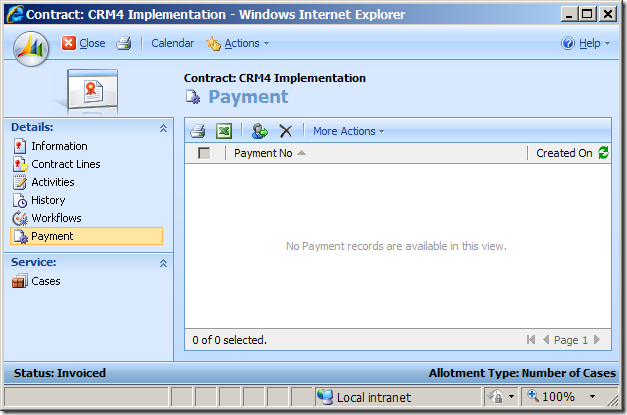
Associated View of Invoiced CRM Contract

This makes sense, but in the case that I have my custom Payment entity involved, I do want to collect and record Payment information as the Contract goes, even after it has been activated or invoiced. Is it possible to have the Create New button back in this case? The answer is YES, you can do it through HTML hack. The following is the script that you can copy to your form’s onLoad event.

/**
 * Recover "New" button in a CRM associated view where the master CRM record is read-only.
 * @author Daniel Cai, http://danielcai.blogspot.com/
 *
 * Parameters:
 * @param navItemId: LHS navigator's HTML element ID of the associated view.
                     It usually starts with "nav".
 * @param relName:   The relationship name that the associated view represents.
 * @param label:     The label of the New button.
 * @param title:     The title of the New button.
 */
 function recoverNewButtonForAssociatedView(navItemId, relName, label, title) {
    var clickActionPattern = /loadArea\(['"]{1}([A-Za-z0-9_]+)['"]{1}\).*/;
    var iframe;

    var recoverNewButton = function() {

        var frameDoc = iframe.contentWindow.document;
        if (!frameDoc) return;

        var grid = frameDoc.all['crmGrid'];
        if (!grid) return;

        var addNewBtnId = formatString('_MBlocAddRelatedToNonForm{0}{1}GUID', grid.GetParameter('otc'), crmForm.ObjectTypeCode);
        var addNewBtn = frameDoc.getElementById(addNewBtnId);
        if (addNewBtn === null)
        {
            var menuBar = frameDoc.getElementById('mnuBar1');
            if (!menuBar) return;
            
            var toolbar = menuBar.childNodes[0].childNodes[0].childNodes[0].childNodes[0];
            
            var html = "<li id=_MBlocAddRelatedToNonForm{0}{1}GUID class=ms-crm-Menu title=\"{3}\" tabIndex=-1 onclick=window.execScript(action) " +
    "action=\"locAddRelatedToNonForm({0},{1},'{2}', '')\">" +
    "<span class=ms-crm-Menu-Label><a class=ms-crm-Menu-Label tabIndex=-1 onclick=\"return false;\" href=\"javascript:onclick();\" target=_self>" +
    "<img class=ms-crm-Menu-ButtonFirst tabIndex=-1 alt=\"{3}\" src=\"/_Common/icon.aspx?objectTypeCode={0}&iconType=DBGridIcon&inProduction=1&cache=1\">" +
    "<span class=ms-crm-MenuItem-TextRTL tabIndex=0>{4}</span></a></span>";
            html = formatString(html, grid.GetParameter('otc'), crmForm.ObjectTypeCode, crmForm.ObjectId, title, label);
            toolbar.innerHTML = html + toolbar.innerHTML;
        }
    };

    var onReadyStateChange = function() {
        if (iframe.readyState === 'complete') {
            recoverNewButton();
        }
    };

    (function init() {
        if (!crmForm.ObjectId) return;

        var navItem = document.getElementById(navItemId);
        if (!navItem) return;

        var clickAction = navItem.getAttributeNode('onclick').nodeValue;
        if (!clickAction || !clickActionPattern.test(clickAction))
            return;

        var areaId = clickAction.replace(clickActionPattern, '$1');

        navItem.onclick = function loadAreaOverride() {
            loadArea(areaId);

            iframe = document.getElementById(areaId + 'Frame');
            if (!iframe) return;

            iframe.attachEvent('onreadystatechange', onReadyStateChange);
        }
    })();
}

To call the above function, you can do something like this.

recoverNewButtonForAssociatedView('nav_new_contract_payment', 'new_contract_payment', 'New Payment', 'Add a new Payment to this record');

If you get everything right, your associated view should look like this:

Associated View of Invoiced CRM Contract with New Button

A few final notes about the script before we go:

  • The script opens up the possibility to create or update information for any CRM record that is read-only, by using a child entity assuming that the user has proper privileges against the child entity.
  • The script should work for any 1-to-many relationship if you have provided navItemId and relName parameters correctly.
  • The script doesn't actually check if the login user has the proper privilege to create new record for the associated entity. The New button will show regardless the current user has the privilege or not, but the CRM platform should prohibit Save happening if the user doesn't actually have the Create privilege for the associated child entity.
  • Undocumented CRM JavaScript function formatString was used to make the code easier to read.
  • The script doesn't look very pretty due to the lengthy HTML code, but it should be quite readable, in my humble opinion.  :-)

Hope this helps.

P.S. This blog post is actually a response to a question on CRM Development Forum.

Saturday, June 05, 2010

MSCRM 4.0: A Few Tips on Using CRM Configuration Data Utility

In case you are not aware, CRM Configuration Data Utility is a handy tool released by Microsoft sometime last year. What it does is to help you transfer CRM configuration data from one environment to another.

I recently happen to have the need to transfer some configuration data between two environments, so I spent a little time to poke around with the utility, and I am very pleased with the tool, but I quickly realized a few limitations with the toolkit that have been intentionally engineered by Microsoft team. Fortunately the utility comes with complete source code, so I was able to tweak it to meet my needs. Here are a couple of tips that might help you make best use of the tool.

  1. This utility is a really convenient tool if you want to transfer any configuration data stored in your custom entities. You can export data from one environment, and import to another one within a few mouse click. But here is the catch, it's engineered to only support the export and import of custom entities. But with the source code, you can easily change it to support any entities including system ones. What you need to do is to change the following code in ExportDataForm.cs file (RetrieveEntitiesComplete method)
    IEnumerable<EntityMetadata> entities = response.CrmMetadata
        .Cast<EntityMetadata>()
        .Where(entity => entity.IsIntersect.Value == false && entity.IsImportable.Value && entity.IsCustomEntity.Value)
        .OrderBy(entity => entity.DisplayName.UserLocLabel.Label)
        .ToList();
    
    
    to
    IEnumerable<EntityMetadata> entities = response.CrmMetadata
        .Cast<EntityMetadata>()
        .Where(entity => entity.IsIntersect.Value == false && entity.IsImportable.Value)
        .OrderBy(entity => entity.DisplayName.UserLocLabel.Label)
        .ToList();


  2. The utility is a smart tool, but it is a little bit too smart when it comes to the import. It will actually try to do duplicate check before importing the data. The duplicate check is based on the imported entity's primary attribute, which isn't correct all the time. Sometimes, we do have two different CRM records with the same value of the primary attribute. For instance, we have a self-referenced entity, which has a parent field to refer to the same entity itself. It's often the case that the primary attribute of two CRM records are the same, but they are linked to two different parents, they are essentially two different records in the business world. In order to have the utility to do straight import, you should comment out the following code in dynamicentityutility.cs file (GetByIdOrPrimaryAttribute method)
    // Locate the following code and comment out the entire block in dynamicentityutility.cs file
    // in order to stop the configuration data utility from performing duplicate check. 
    string primaryAttribute = MetadataUtility.RetrievePrimaryAttribute(metadataService, entityName);
    QueryExpression query = new QueryExpression(entityName)
    {
        ColumnSet = new ColumnSet(fields)
    };
    
    ConditionExpression primaryAttributeExpression = new ConditionExpression(primaryAttribute.ToLower(), ConditionOperator.Equal, primaryAttributeValue);
    query.Criteria.Conditions.Add(primaryAttributeExpression);
    
    RetrieveMultipleRequest request = new RetrieveMultipleRequest()
    {
        Query = query,
        ReturnDynamicEntities = true
    };
    
    RetrieveMultipleResponse response = (RetrieveMultipleResponse)_crmService.Execute(request);
    
    if (response.BusinessEntityCollection.BusinessEntities.Count > 0)
        resultList.AddRange(response.BusinessEntityCollection.BusinessEntities.ConvertAll<DynamicEntity>(x=> (DynamicEntity)x));
    

The beauty about this tool is, you often configure your CRM workflows in one environment (for instance, your development environment), and those CRM workflows sometimes refer to particular CRM records as configuration data, so there is dependency between your workflow and those CRM records. When you export those workflows and import to a different environment (for instance, your production environment), you will have to re-create the same set of CRM records in the new environment in order to make the workflows work. But if you create the records manually, the records' internal ID (Guid) would be different, so you will have to reconfigure each workflow to point to the new created CRM records, otherwise, you would not be able to publish your workflows. But with the configuration data utility handy, you can simply transfer the configuration data, the IDs will remains the same as what it was in the original environment, so you don't have to reconfigure your workflows, it will save you tremendous effort when you try to promote workflows from one environment to another which have dependency on configuration data.

Hope this gives you some basic ideas about how to tweak the utility. In my opinion, it's a pretty well-engineered piece of software.